- CMS
- Pages
- Categories
- CMS overview
- Creating and Publishing a New Blog Post
- How to Create and Edit Pages using Page Templates
- Creating PageBuilder Elements
- How To Send A Custom Message With Attachments
- Customizing Your Website Header and Header Settings
- Users
- eLearning
- Managing a Course
- Courses
- eCommerce
- Customize
- Customize Dashboard Menu
- Landing Pages using Claude or Codes
- Customize User Dashboard
- Gamification
- Use leaderboards and monitor program health
- Review the points log
- Plan badges, levels, and rewards
- Create and manage point rules
- Gamification overview
- Interface
- How to switch between roles ?
- FAQs
- How is monthly active users recorded ?
Customize Dashboard Menu
Updated on Fri Apr 03 2026
Learn how to personalize your account navigation by adjusting settings within the customize menu. This guide provides a quick walkthrough to help you enable specific features and save your changes effectively.
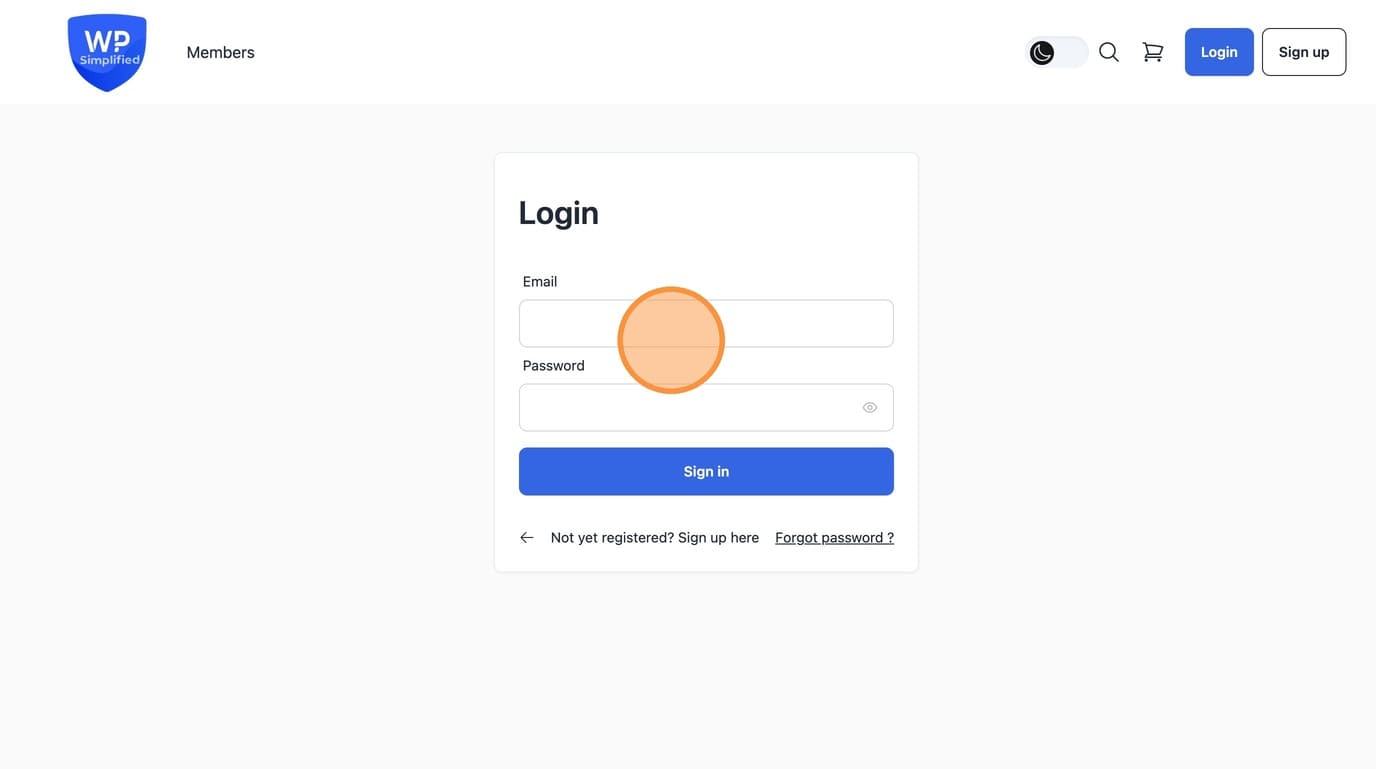
1. Login as Administrator to your AcademyLauncher Site
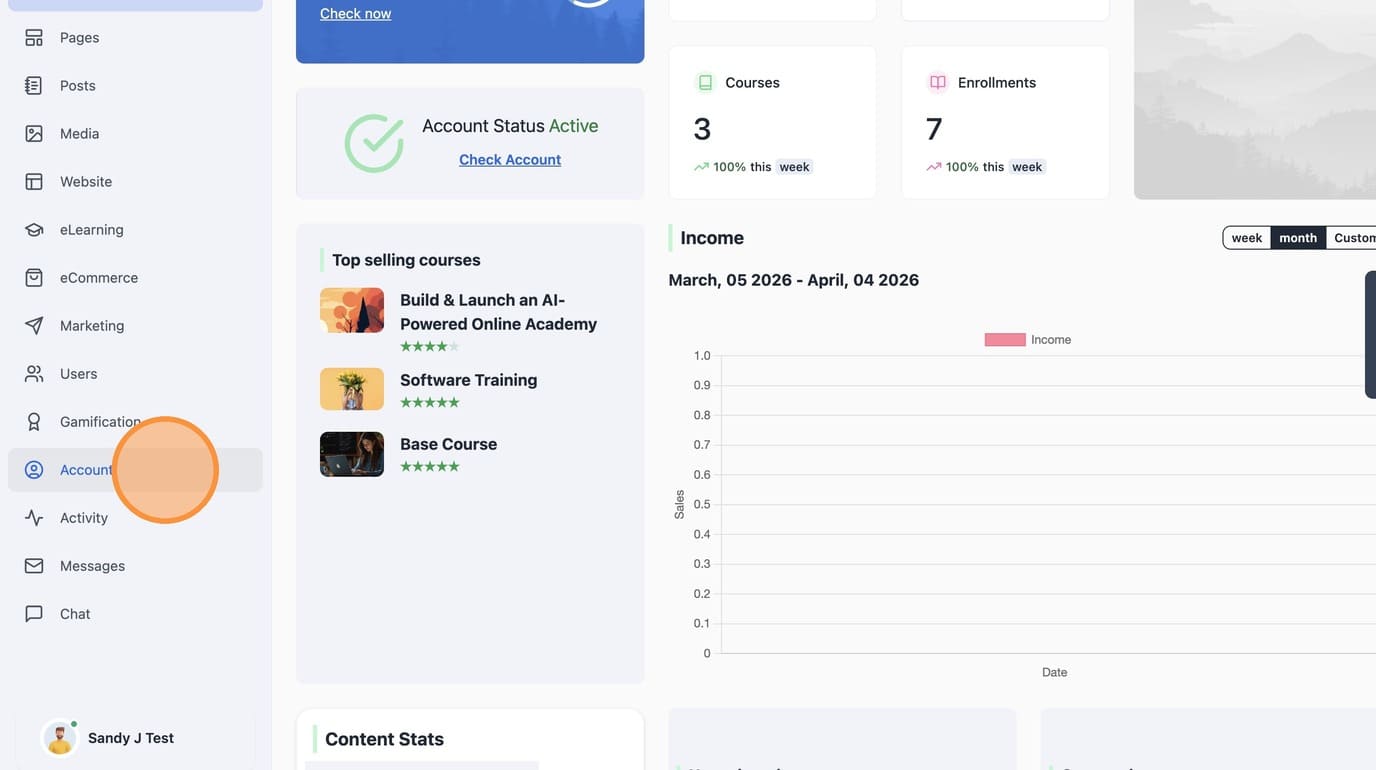
2. Click "Account"
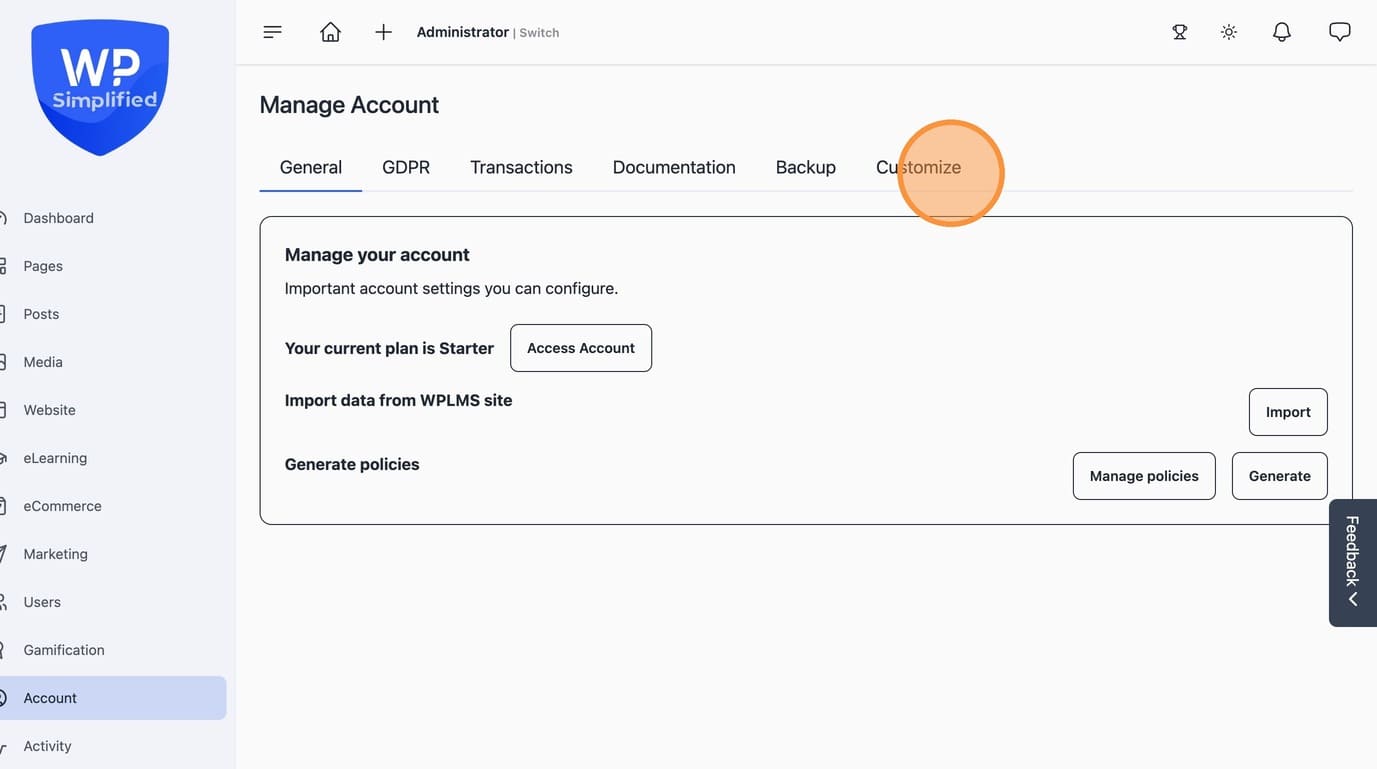
3. Click "Customize"
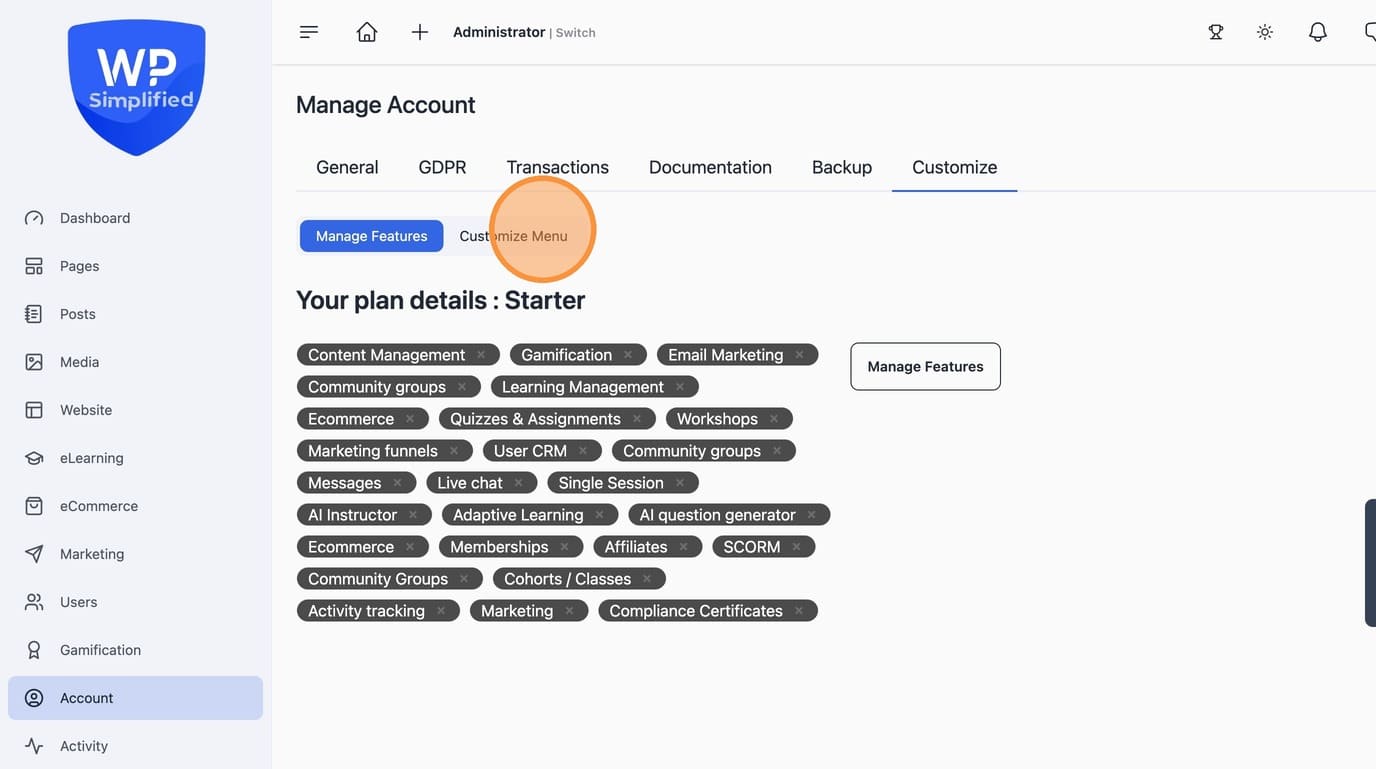
4. Click "Customize Menu"
5. Use Icon to drag and rearrange the menu items for the selected user role
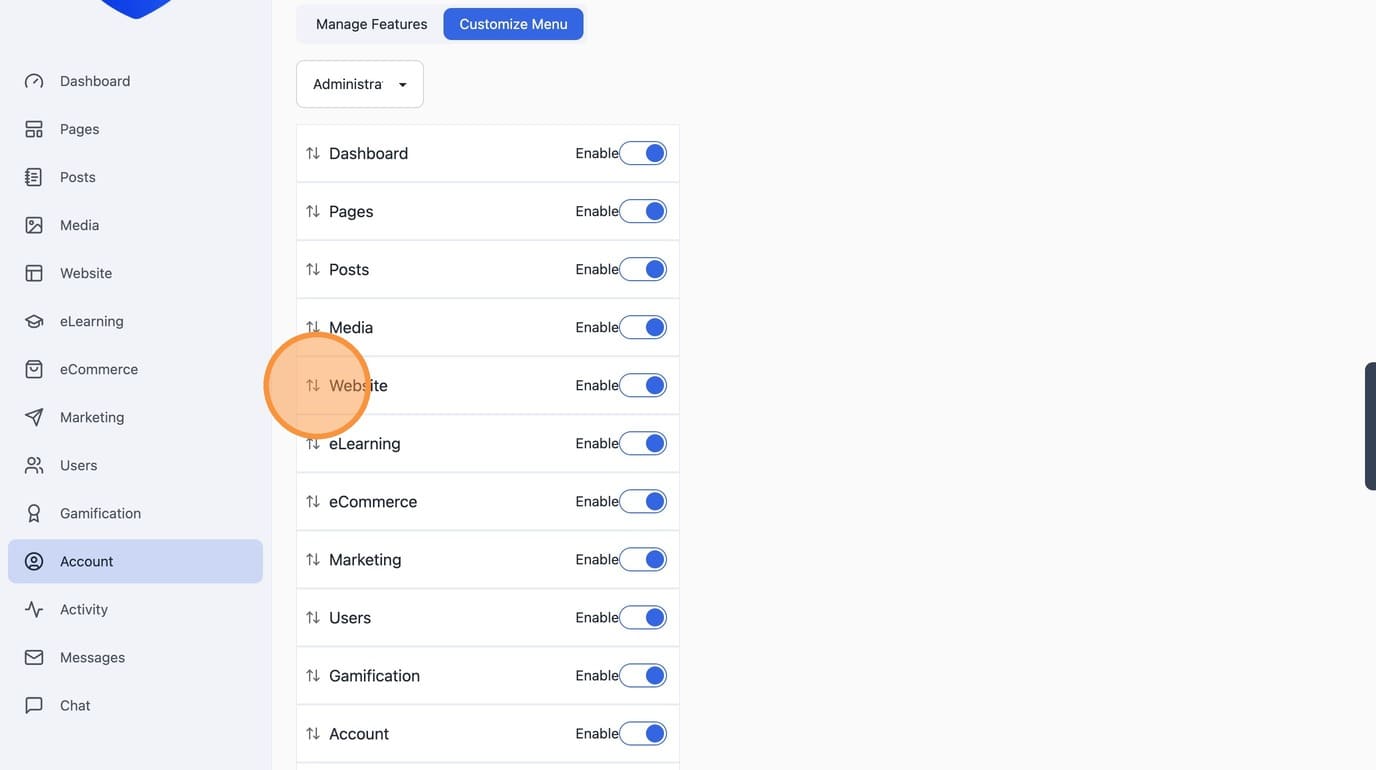
6. Use the "Enable" field to enable or disable Menu item in the dashboard
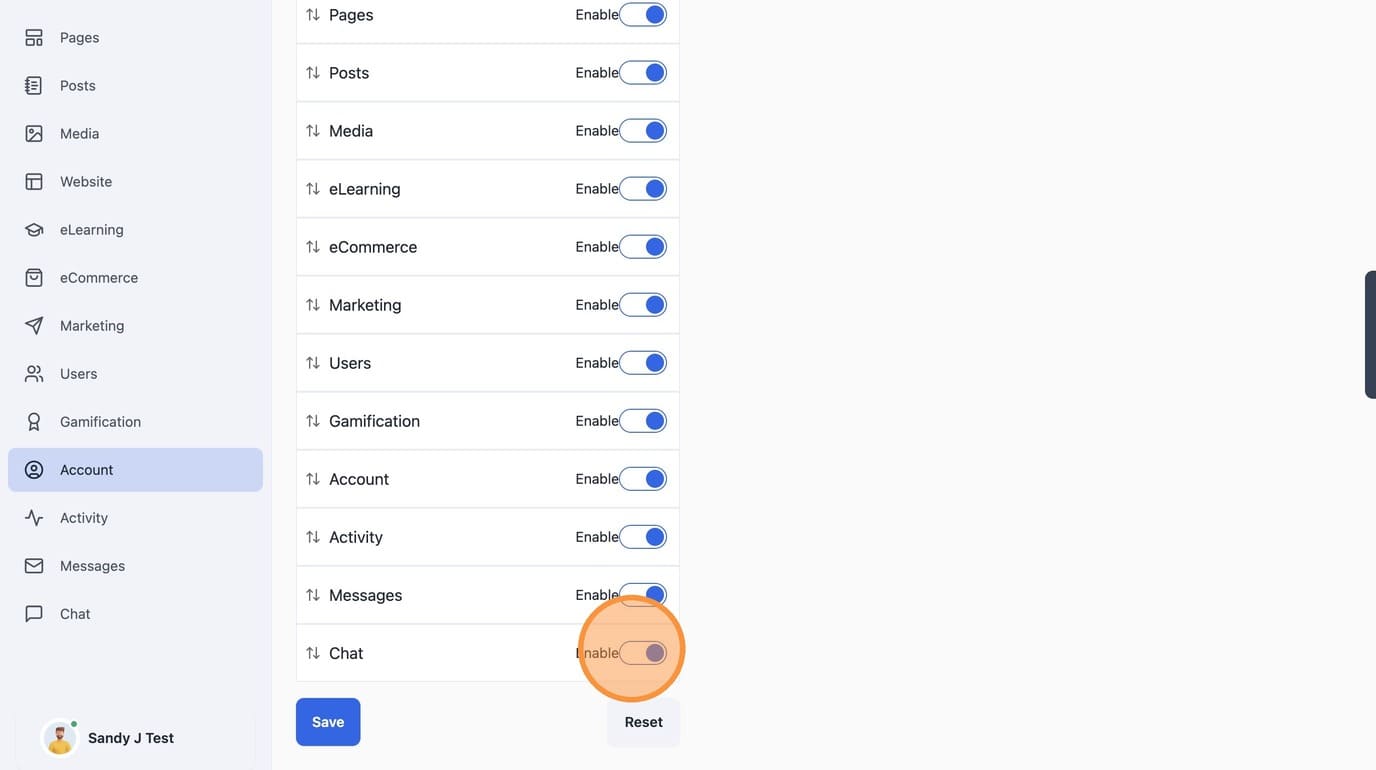
7. Click "Save"
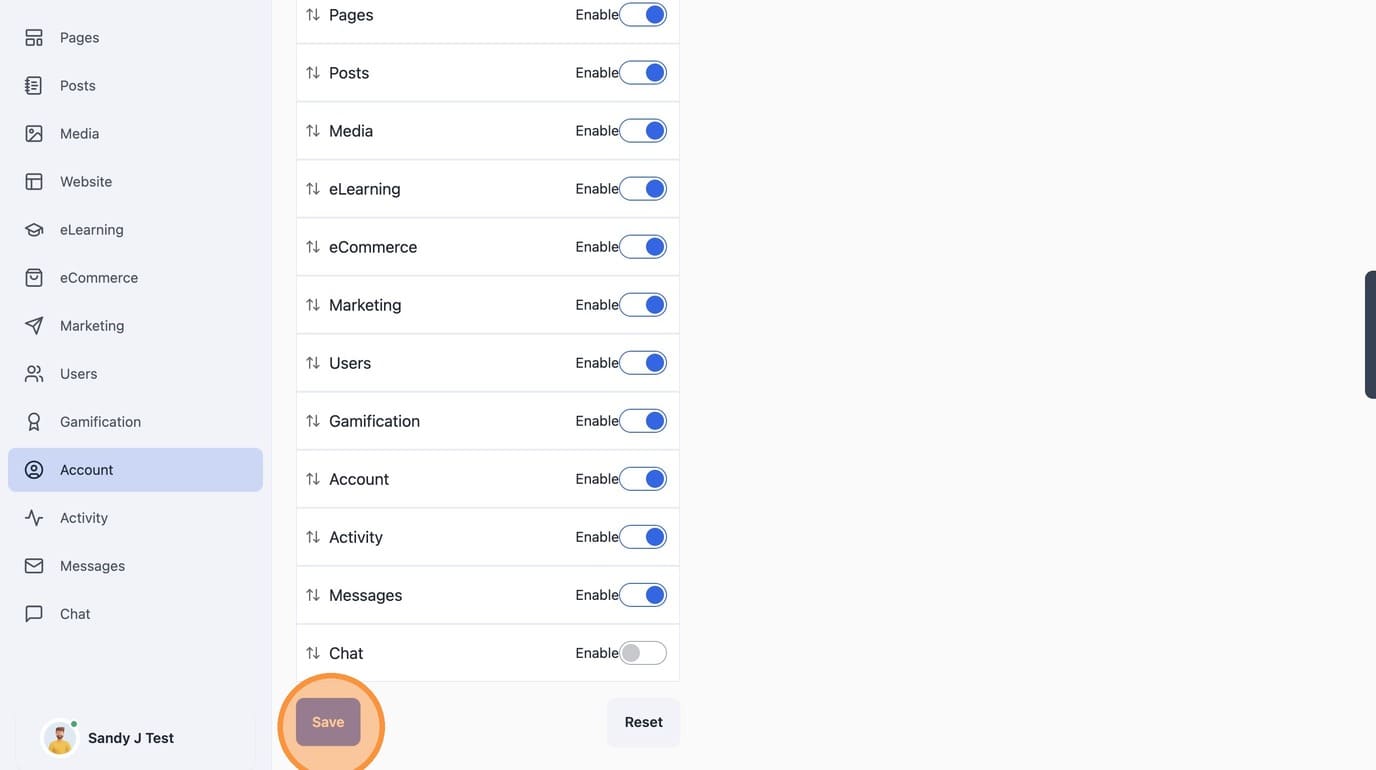
8. Click "Reset" to defaults.