- CMS
- Pages
- Categories
- CMS overview
- Creating and Publishing a New Blog Post
- How to Create and Edit Pages using Page Templates
- Creating PageBuilder Elements
- How To Send A Custom Message With Attachments
- Customizing Your Website Header and Header Settings
- Users
- eLearning
- Managing a Course
- Courses
- eCommerce
- Customize
- Customize Dashboard Menu
- Landing Pages using Claude or Codes
- Customize User Dashboard
- Gamification
- Use leaderboards and monitor program health
- Review the points log
- Plan badges, levels, and rewards
- Create and manage point rules
- Gamification overview
- Interface
- How to switch between roles ?
- FAQs
- How is monthly active users recorded ?
How to Create and Edit Pages using Page Templates
Learn how to efficiently create a new page and customize its content within the Vibe Academy dashboard. This guide walks you through the steps to update headers, replace images, and manage library content to keep your site updated.
1. Navigate to your site Dashboard as Administrator.
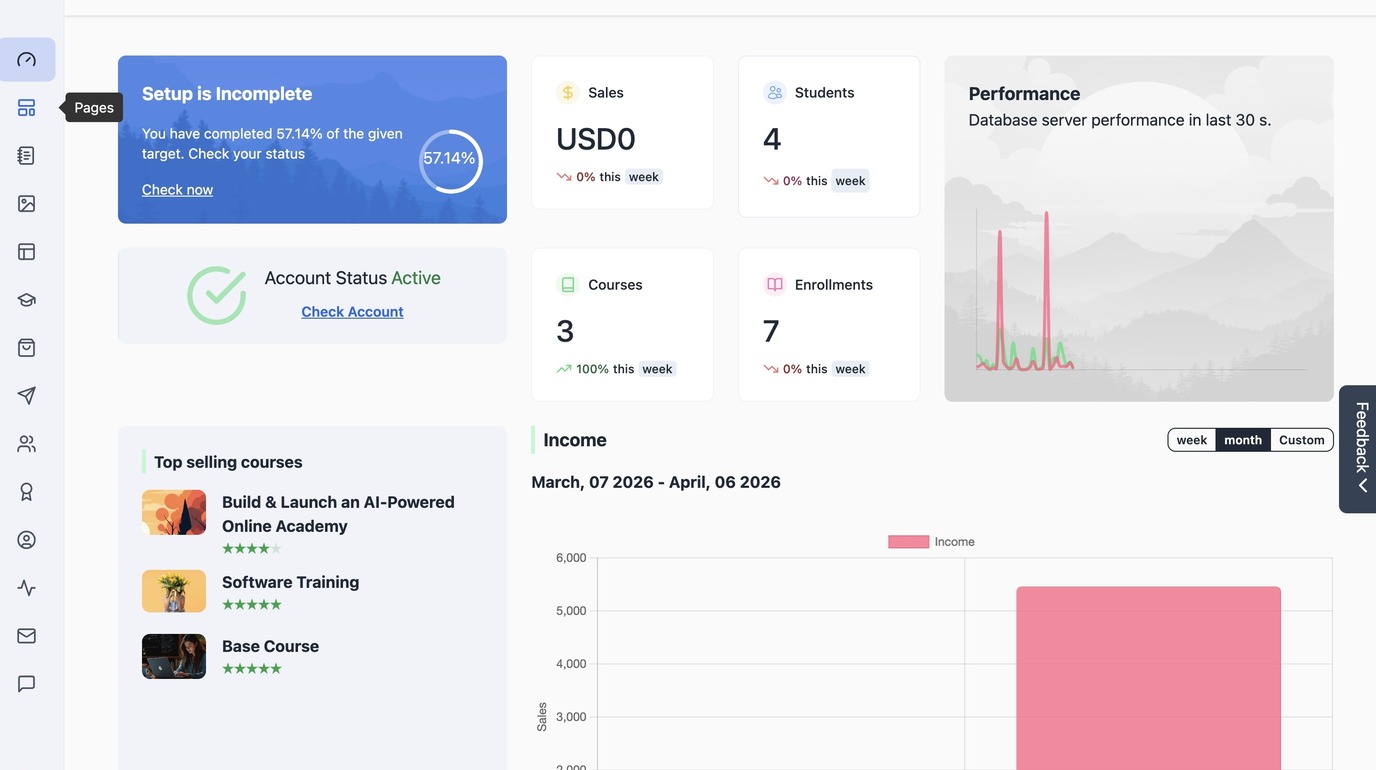
2. Click the Pages section
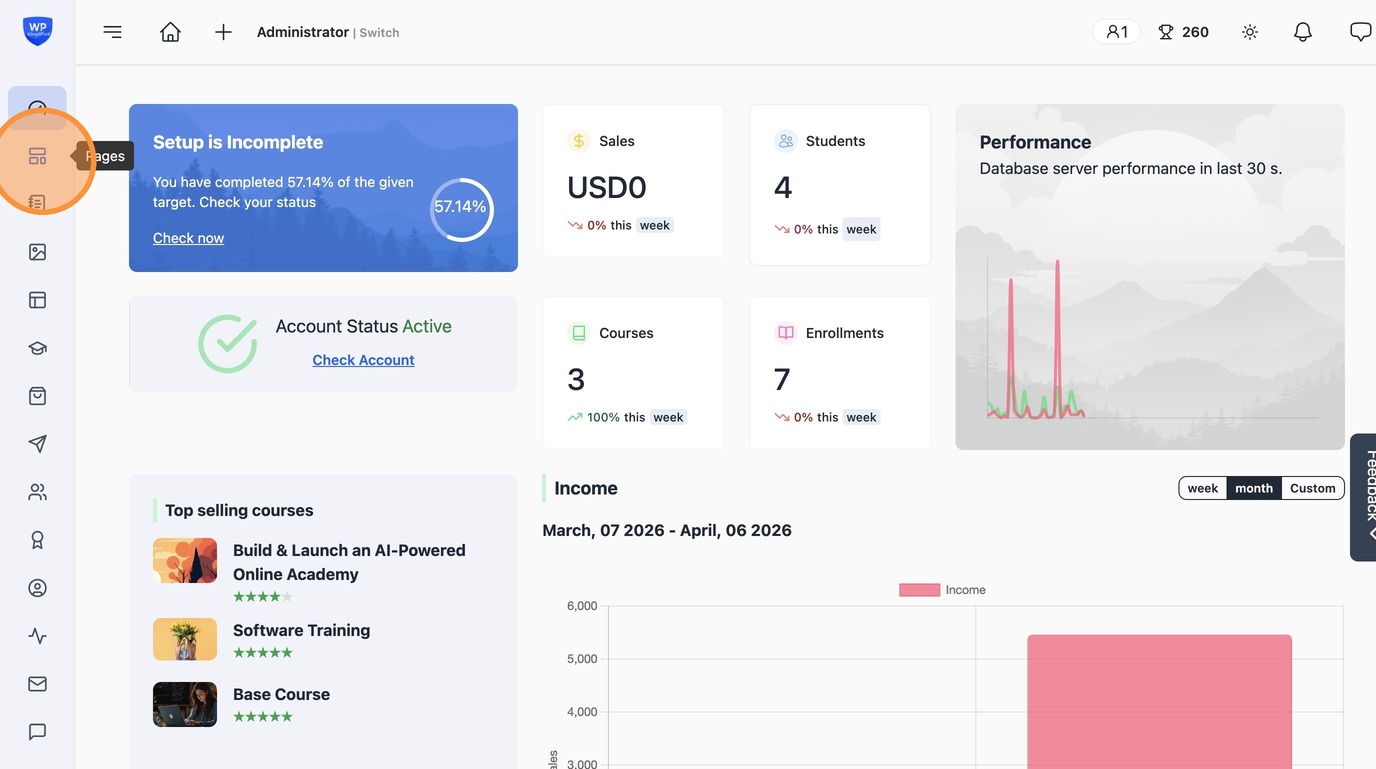
3. Click "Add New" or Edit an existing page.
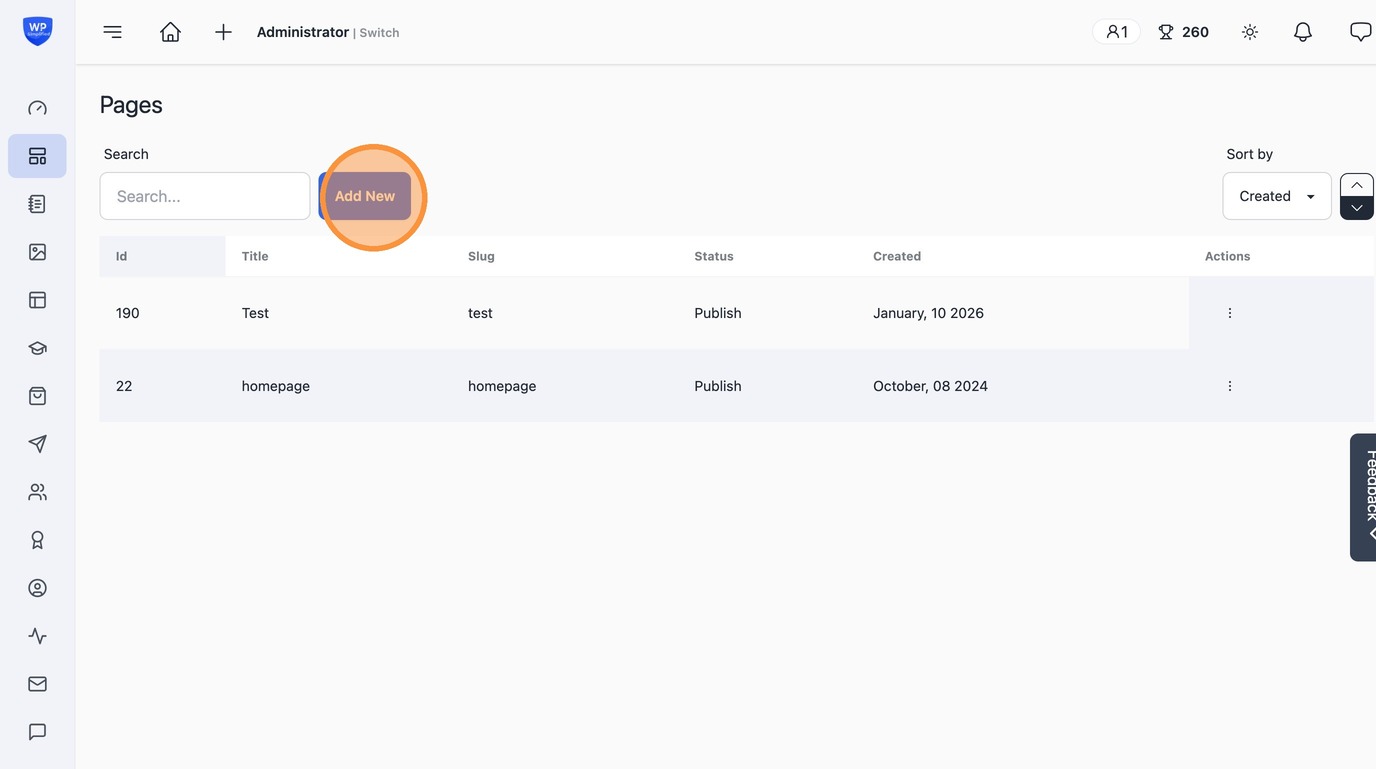
4. Click this field to add the Page title. It is very important to set a good title for SEO purpose as it appears in search results.
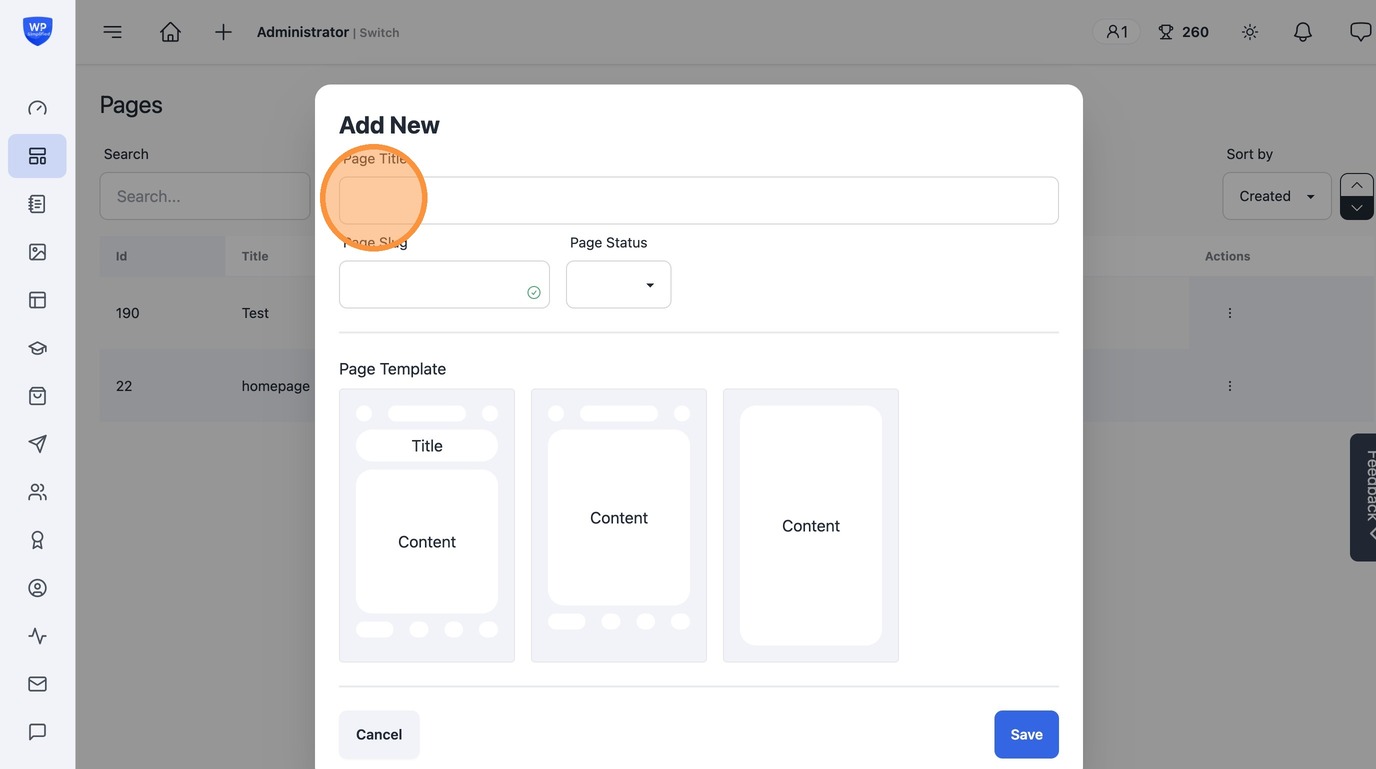
6. Select the Page template layout and set the page status as "Publish" to make the page live.
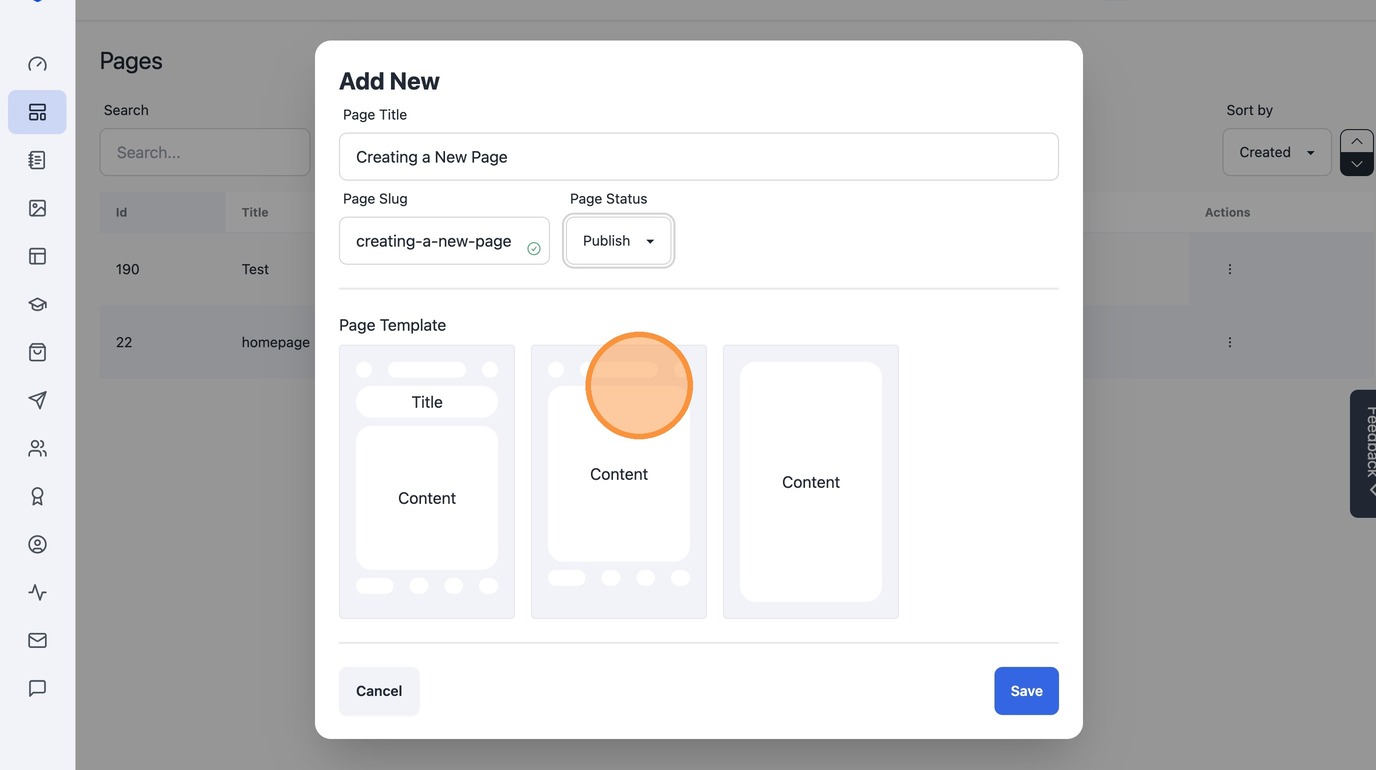
7. Click "Content" to set the page layout style. For landing page we recommend using no-header, no footer one. For standard you can show the title on the page as well.
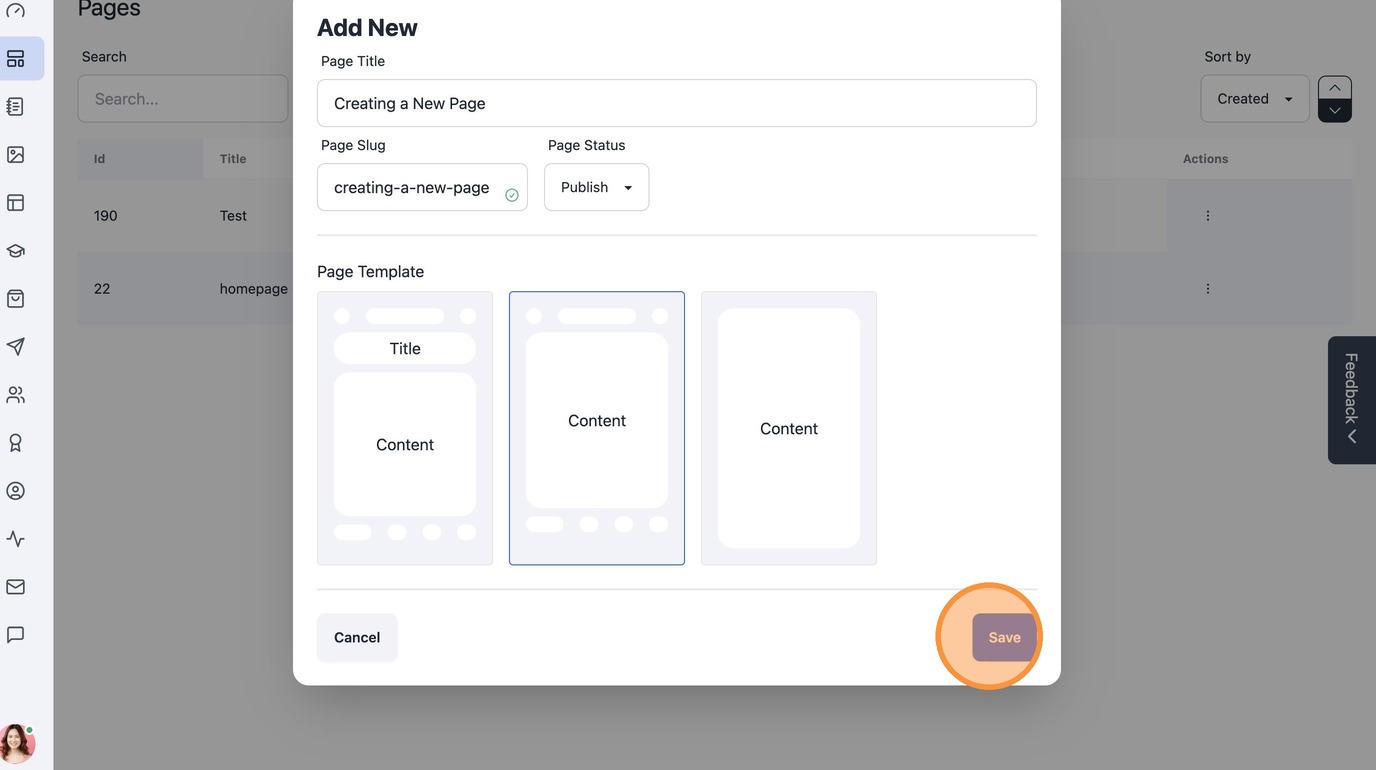
8. Click "Save" to save the changes. Reload if page does not show up in the pages panel.
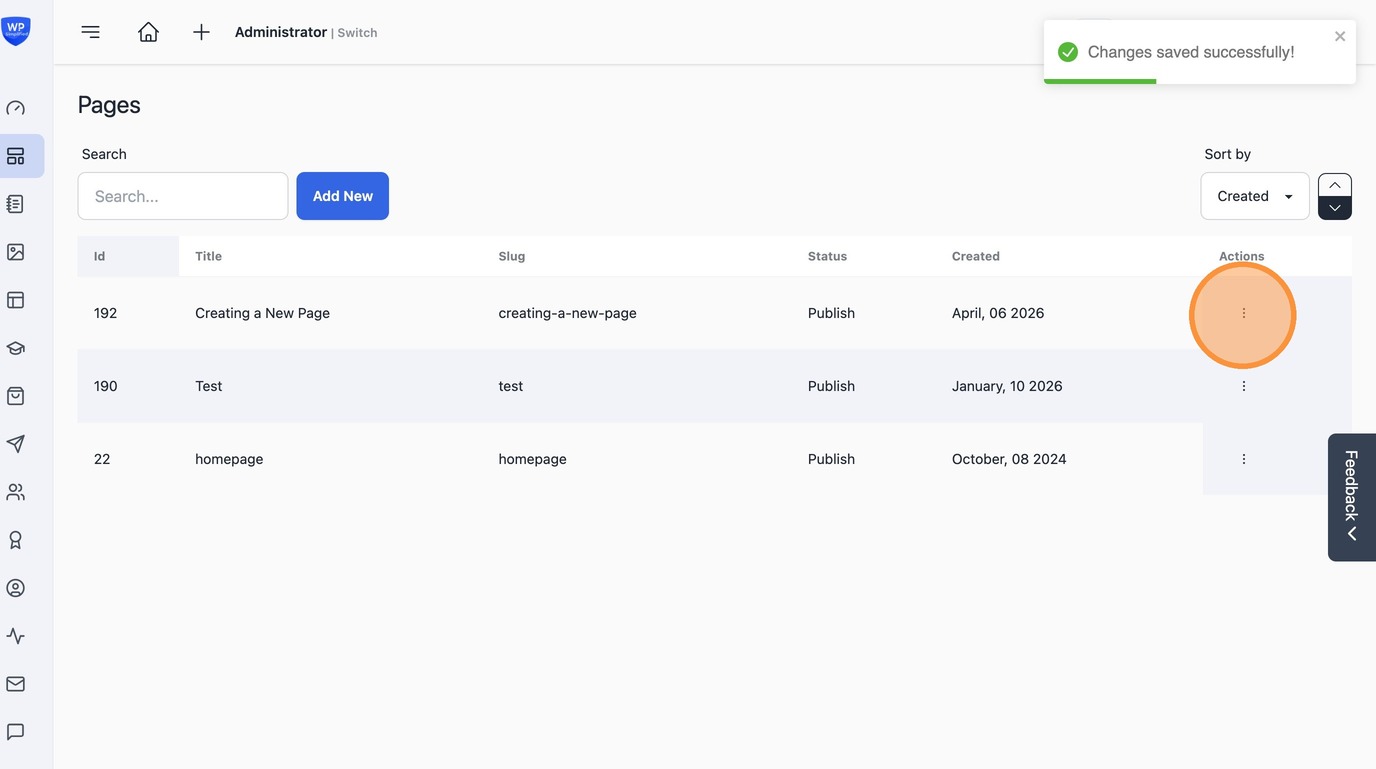
9. Select Edit page to edit your page .
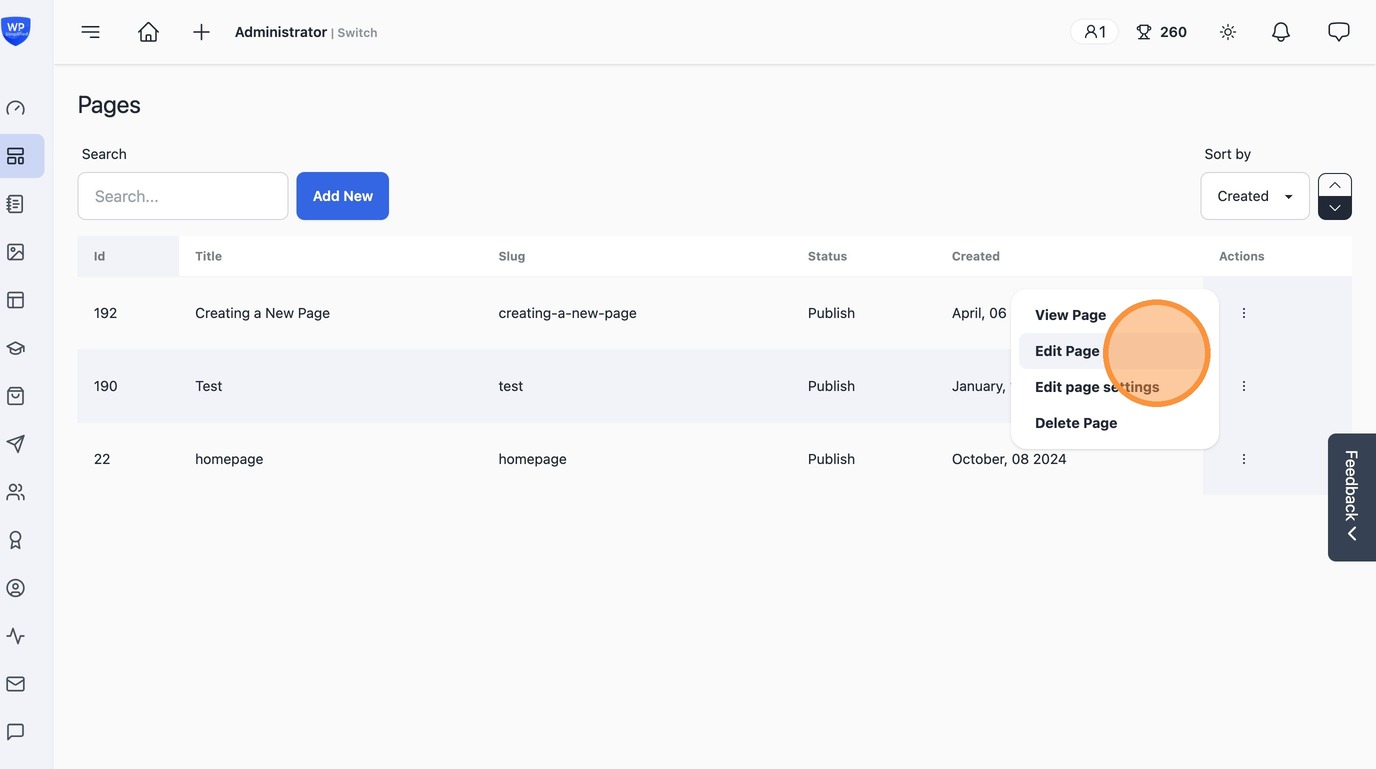
10. Click "Edit Page"
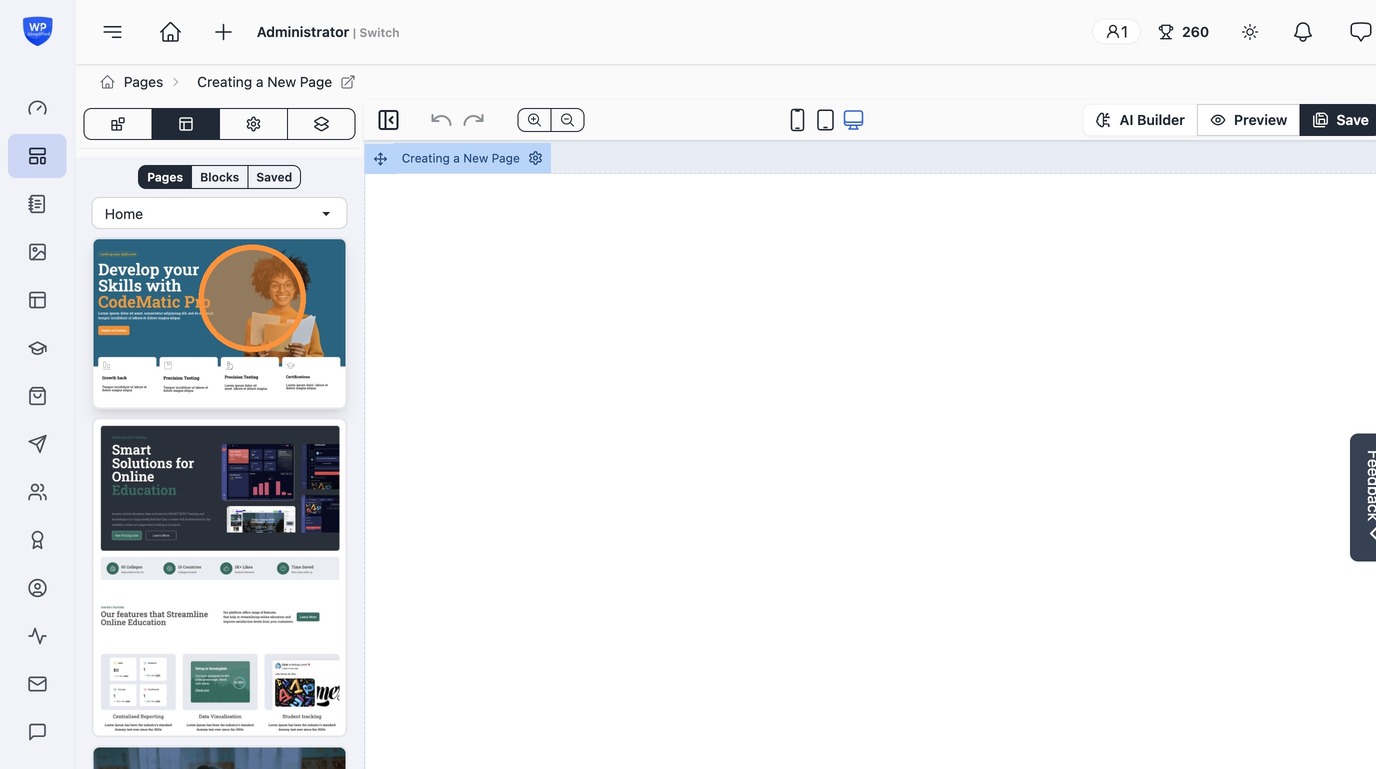
11. Drag a Template layout into the Page builder Canvas
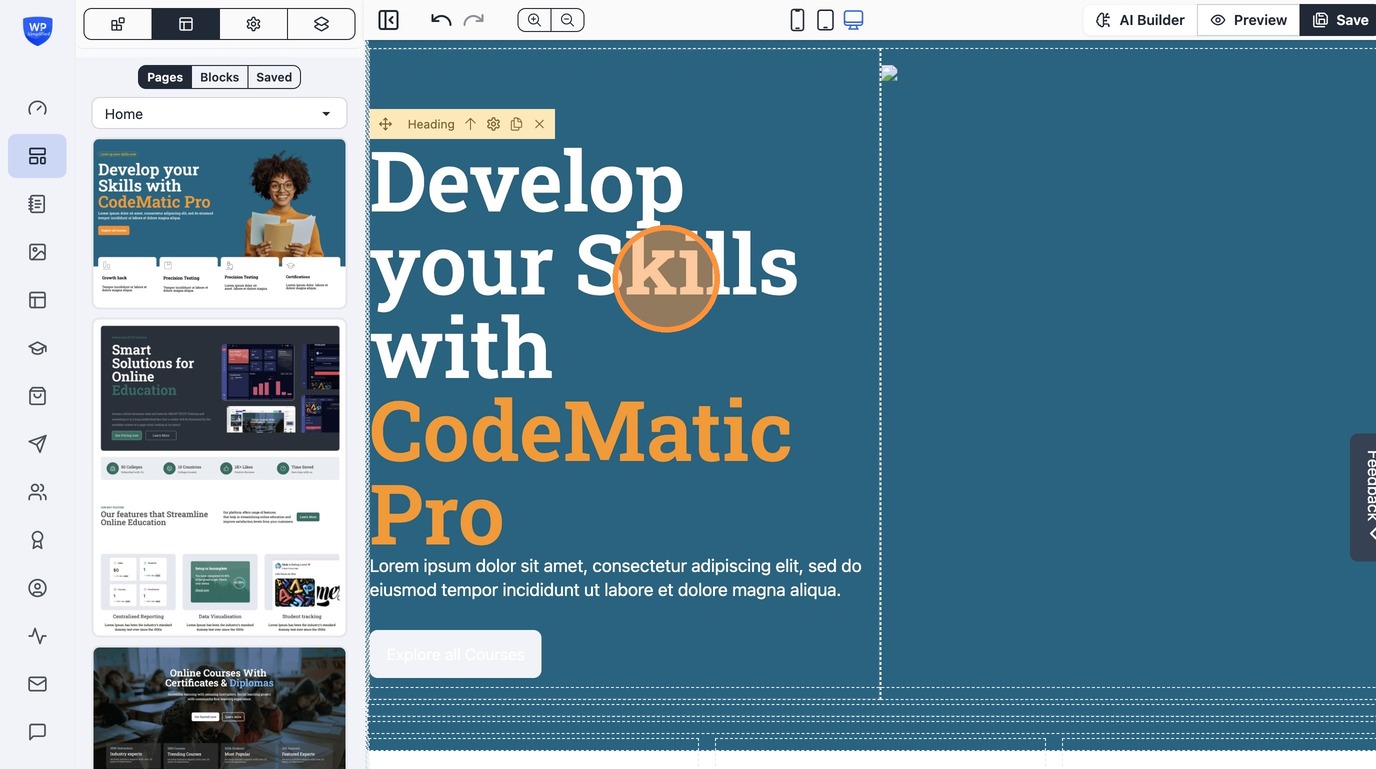
12. Click the text you want to edit like "Develop your Skills with CodeMatic Pro"
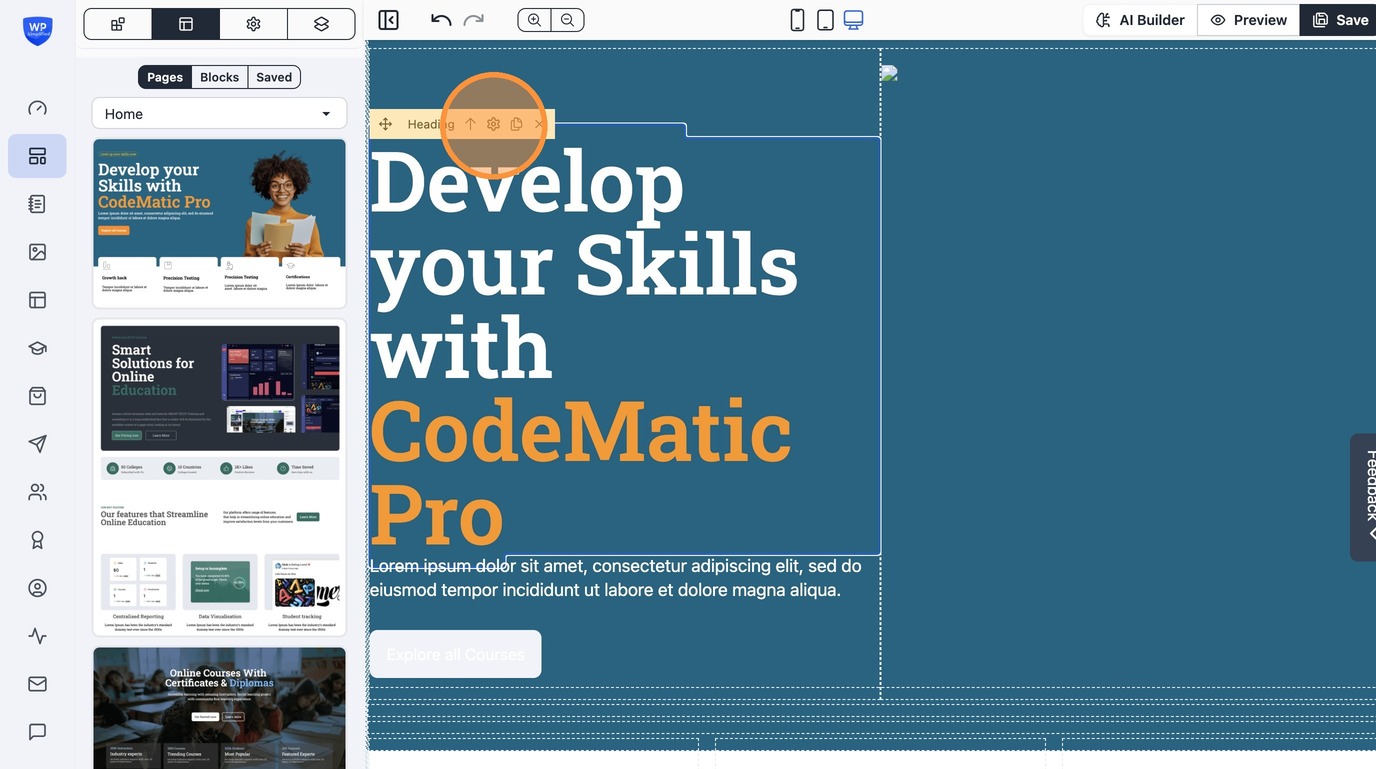
13. Or click the settings icon
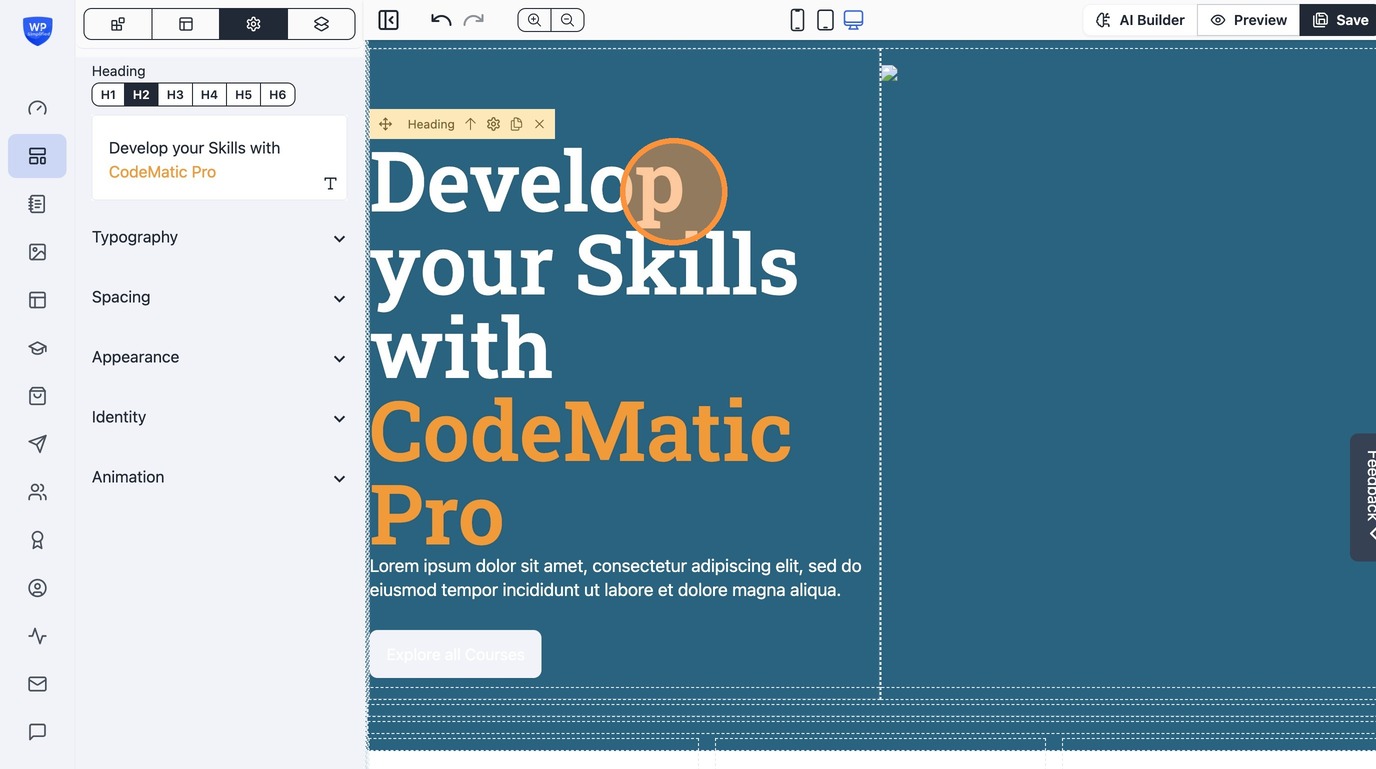
14. Manage the settings of the block
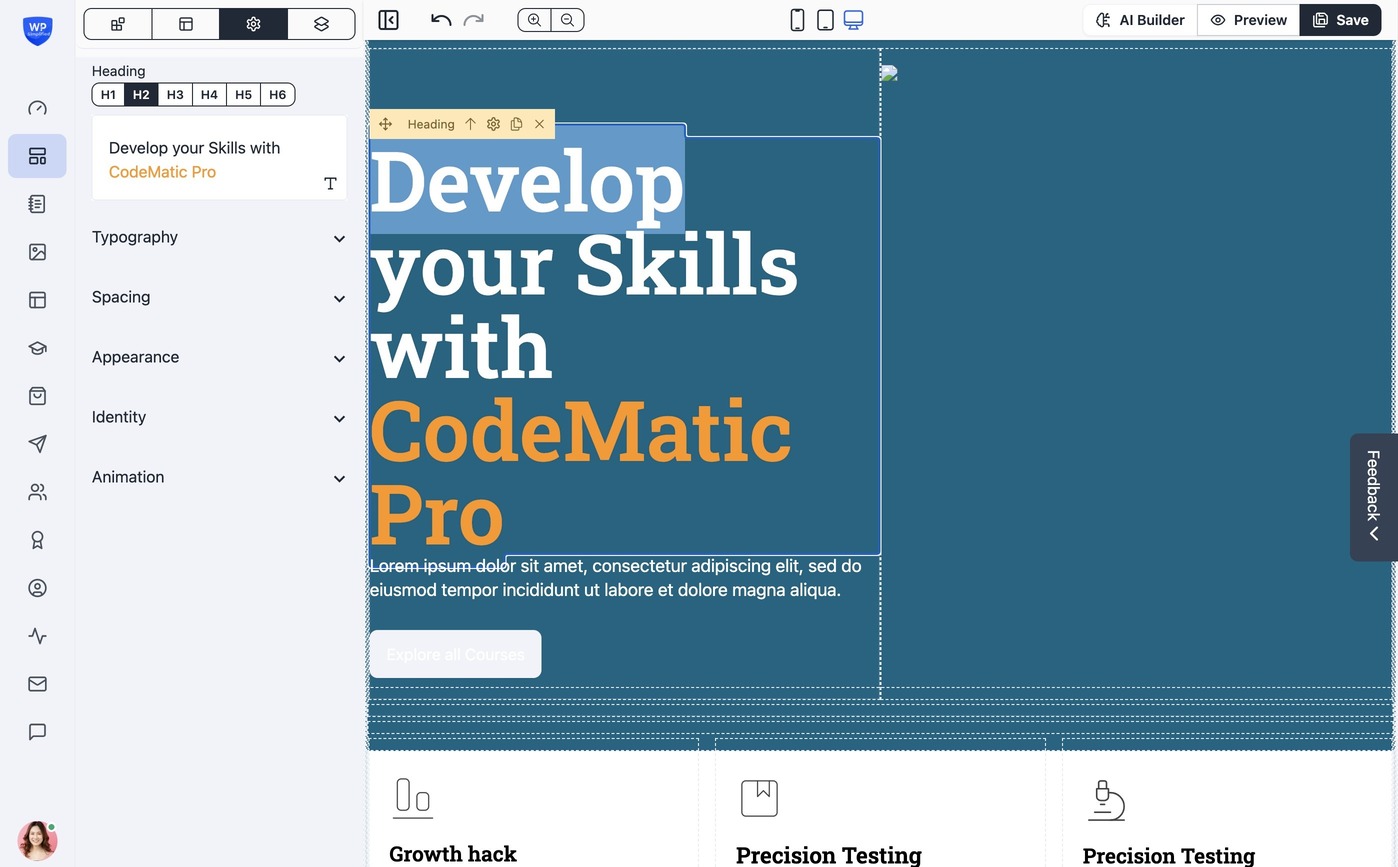
15. For text blocks simply start typing
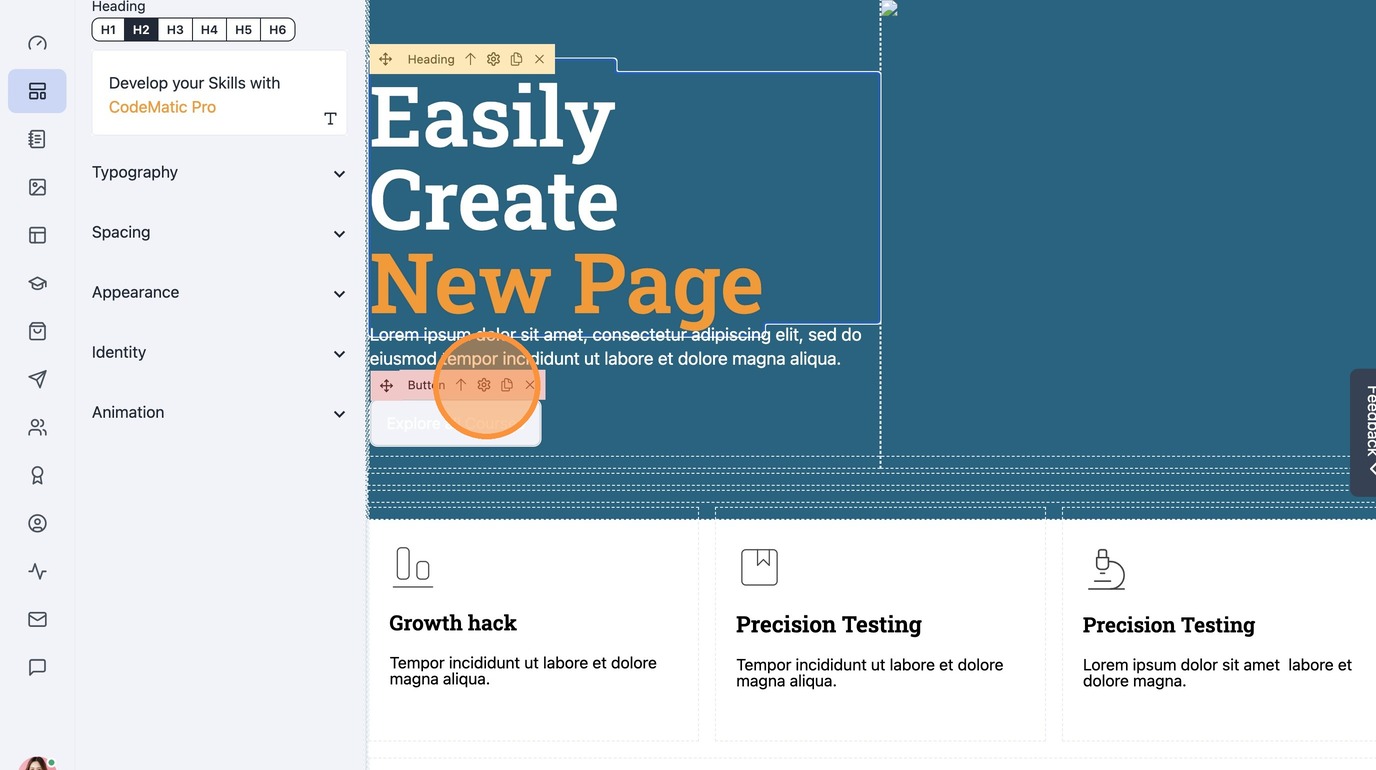
16. Similar customize buttons by clicking the "Settings" icon
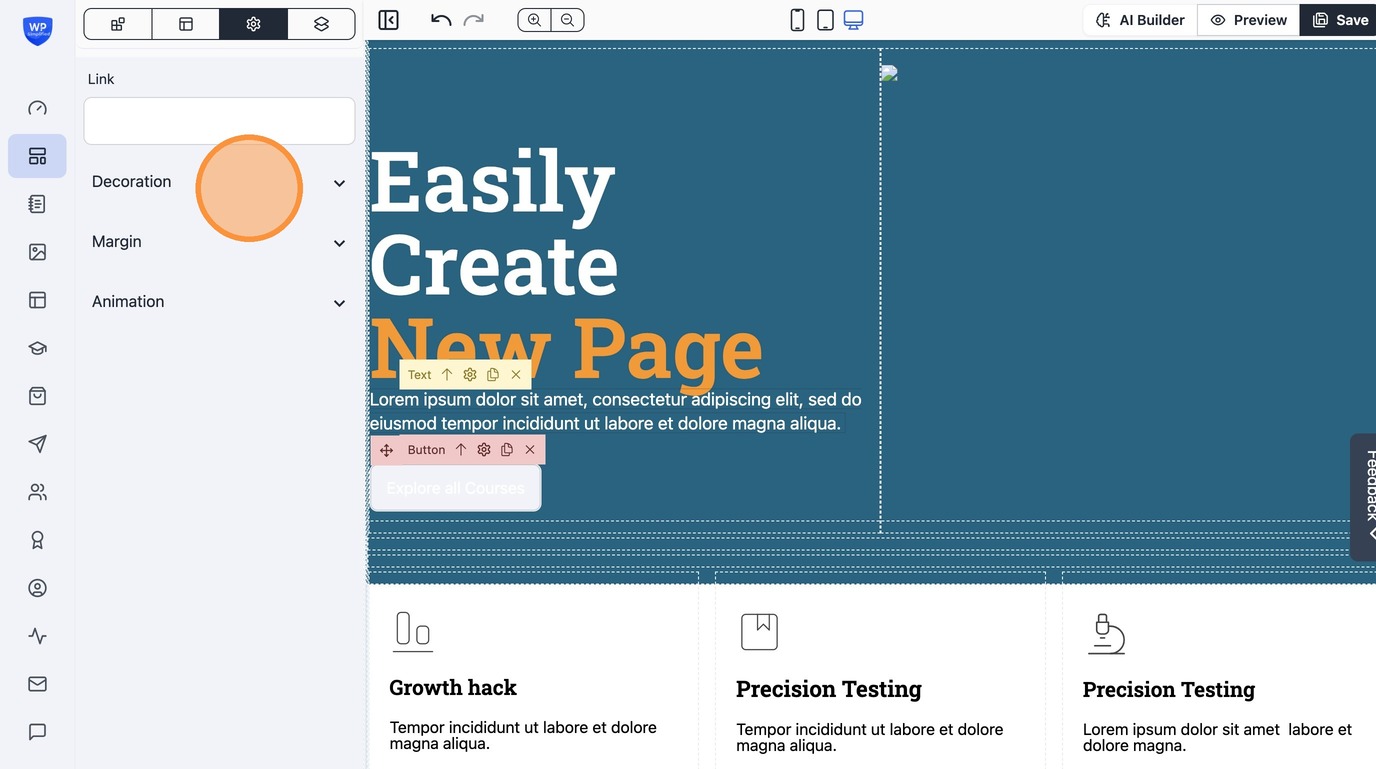
17. Set a link or customize colors
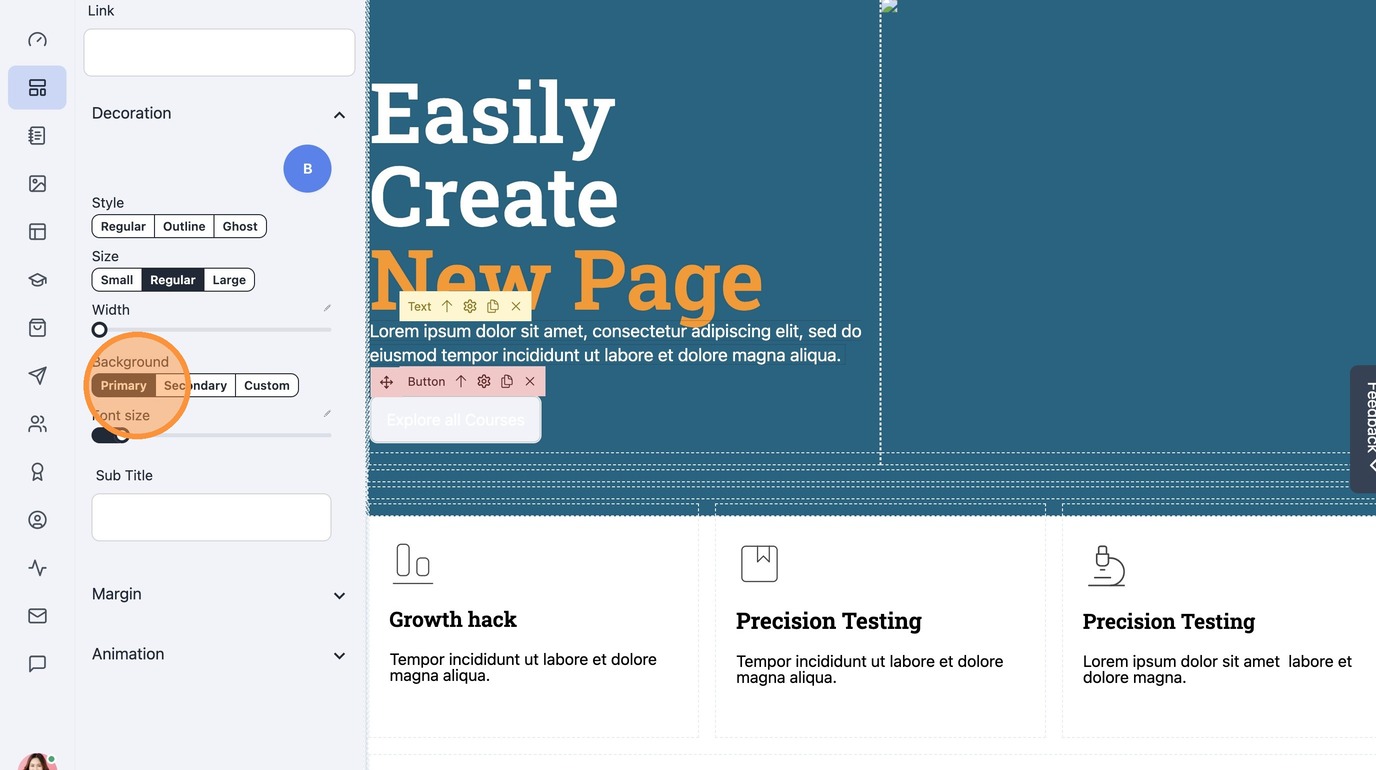
18. Use "Primary" to set to your site's primary color
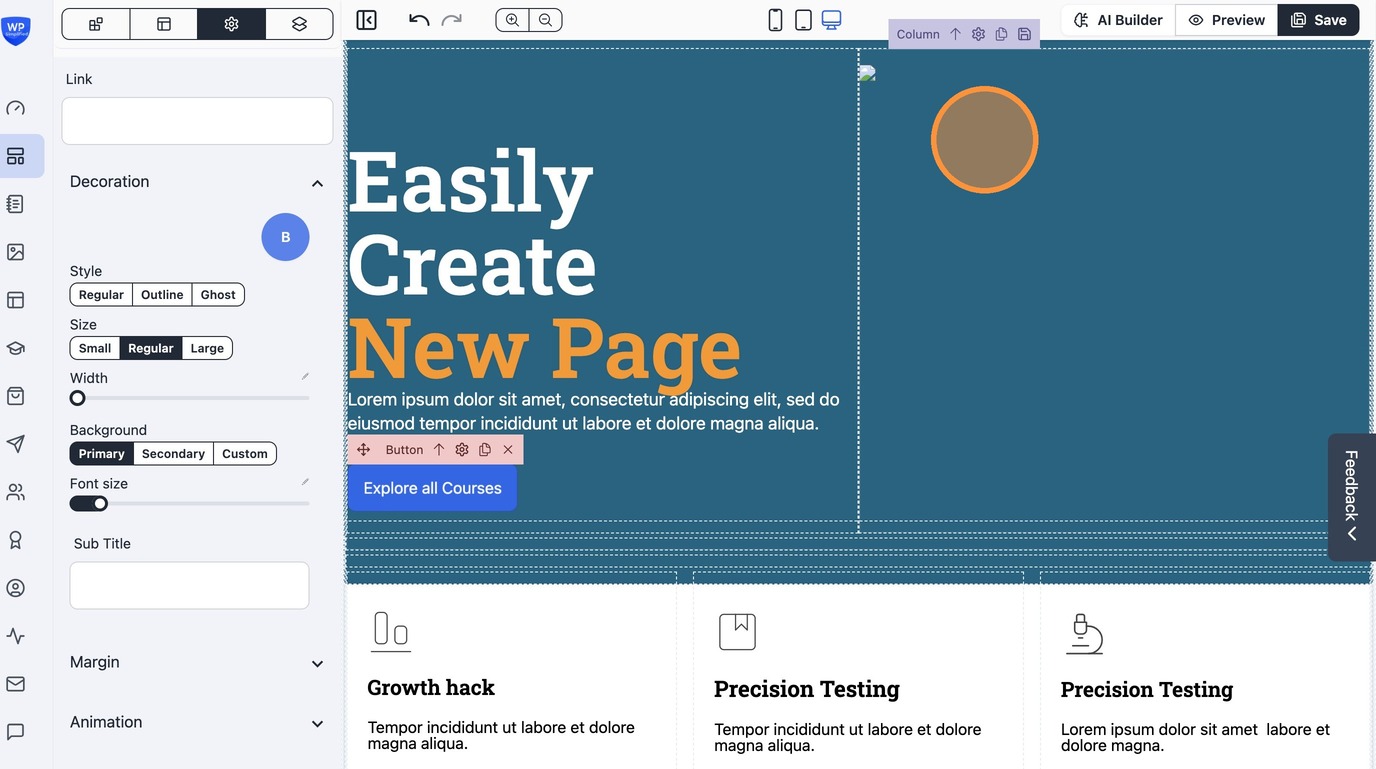
19. Configure images
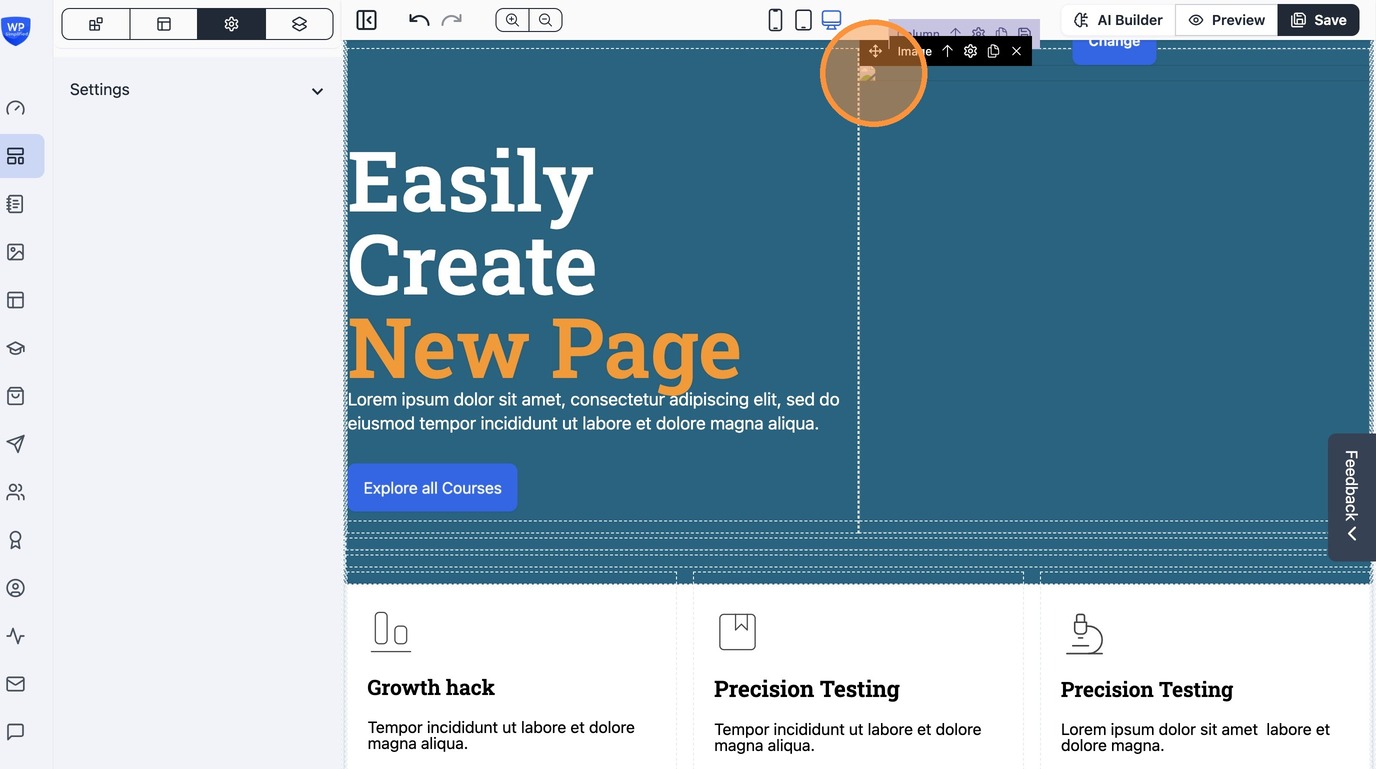
20. Click on the image to replace
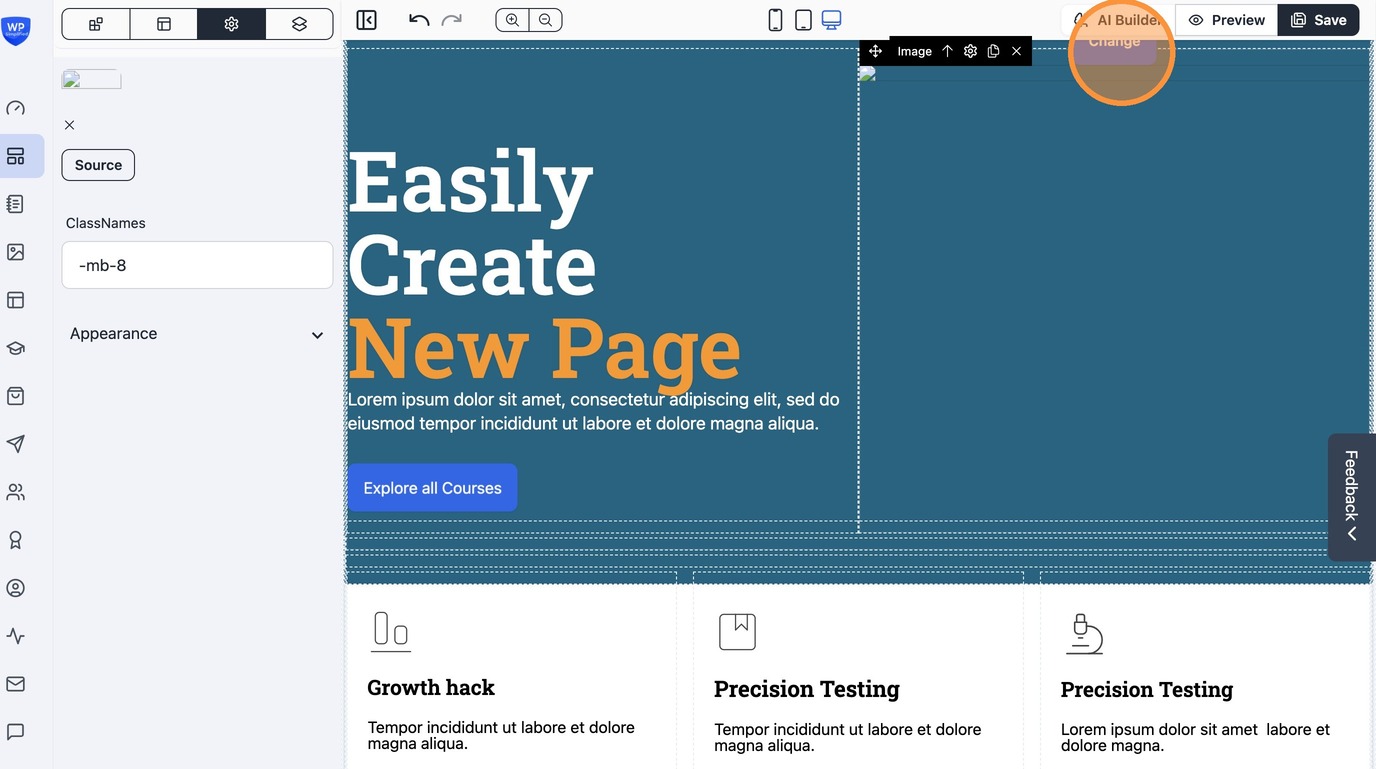
21. Click "Change"
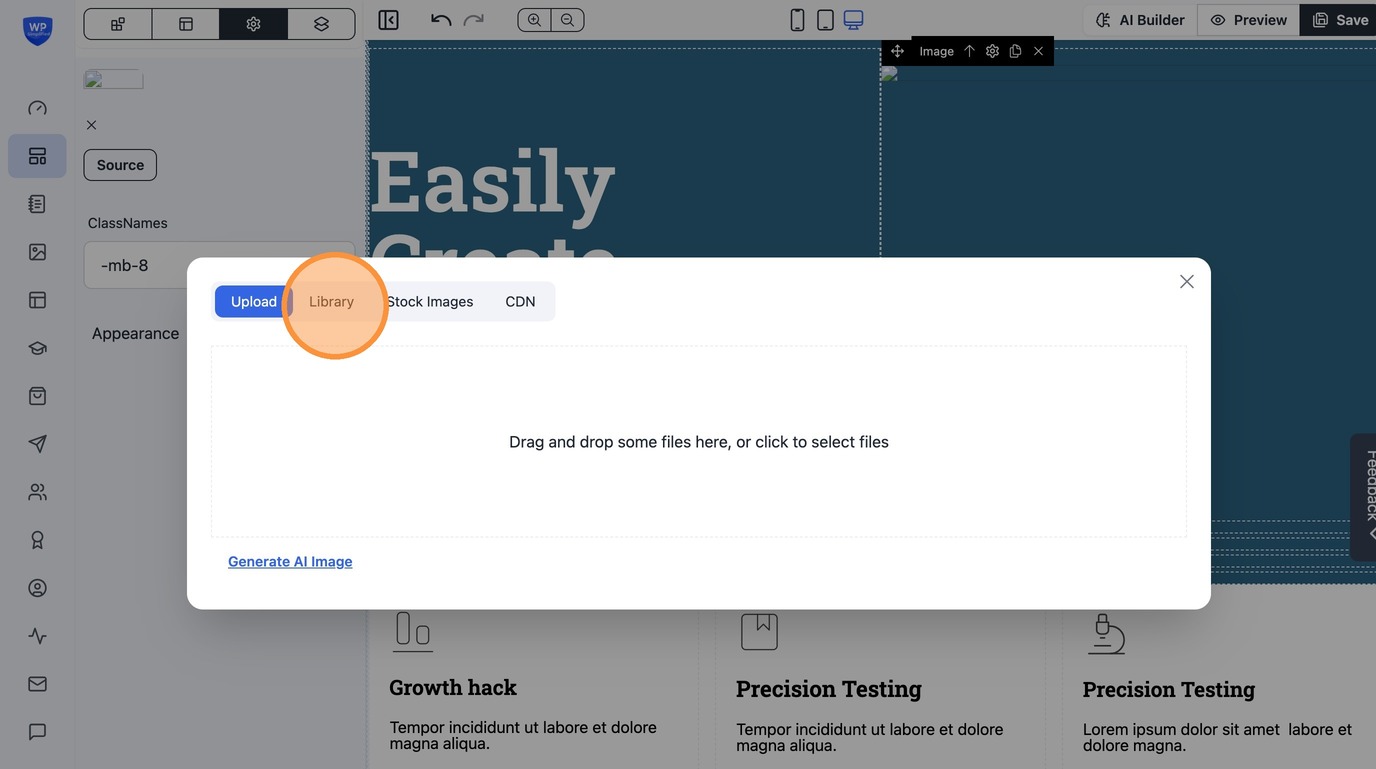
22. Upload or select an image from the "Library"
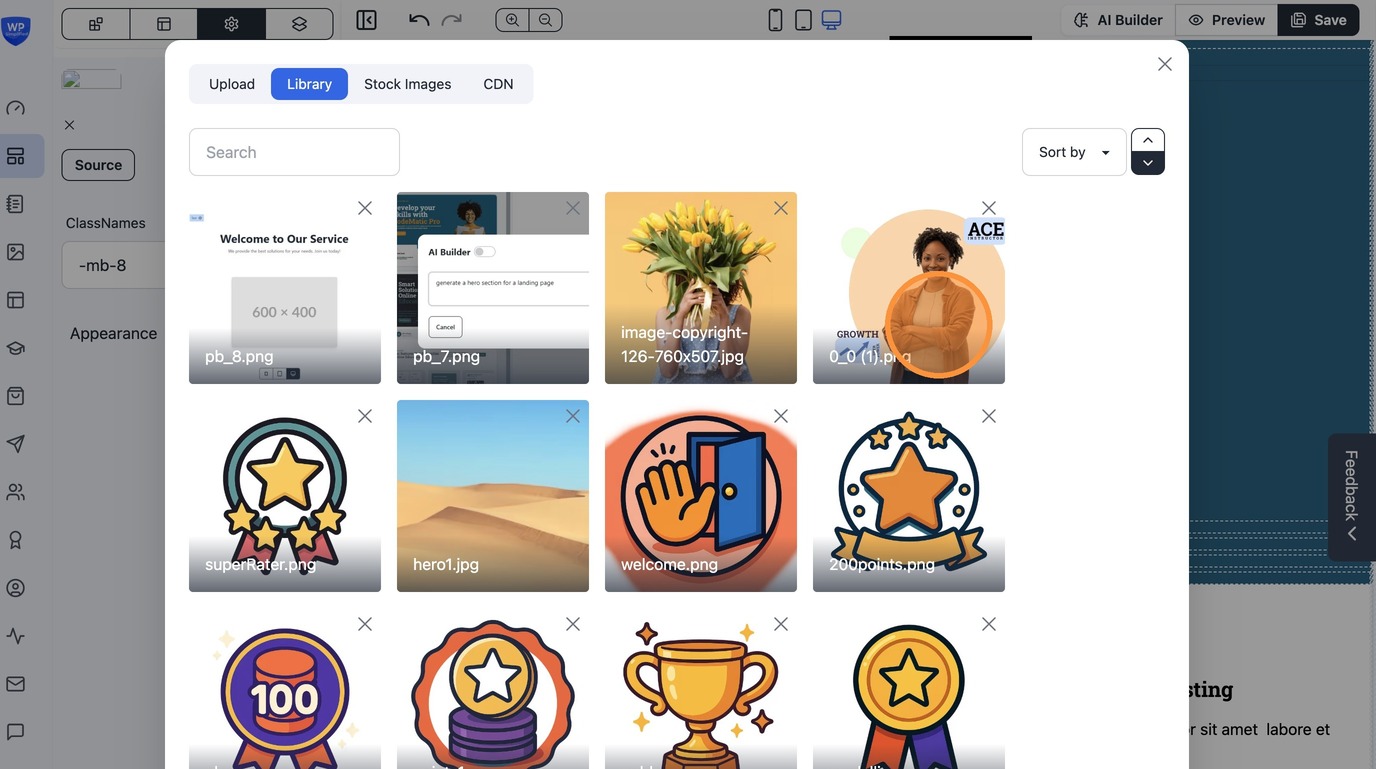
23. Select an image from the library.
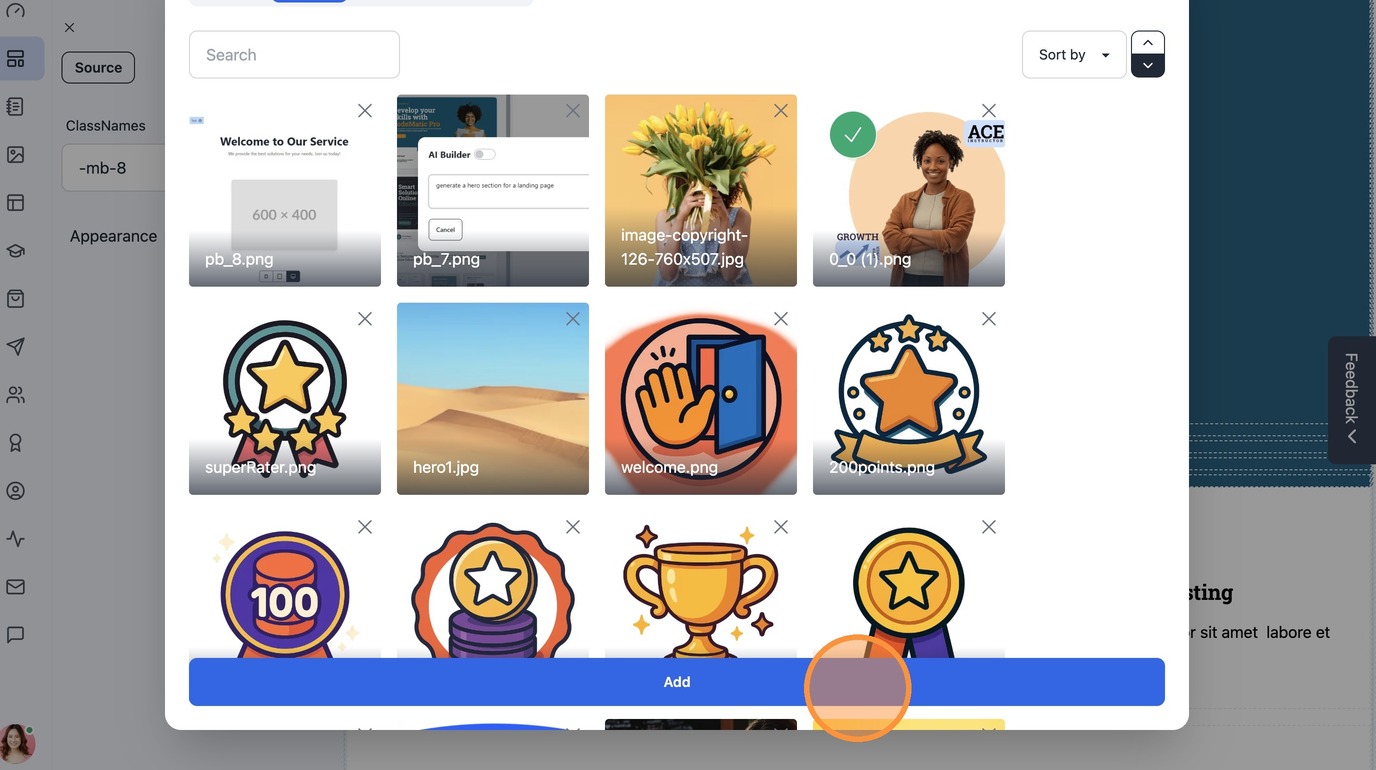
24. Click "Add" to replace the image
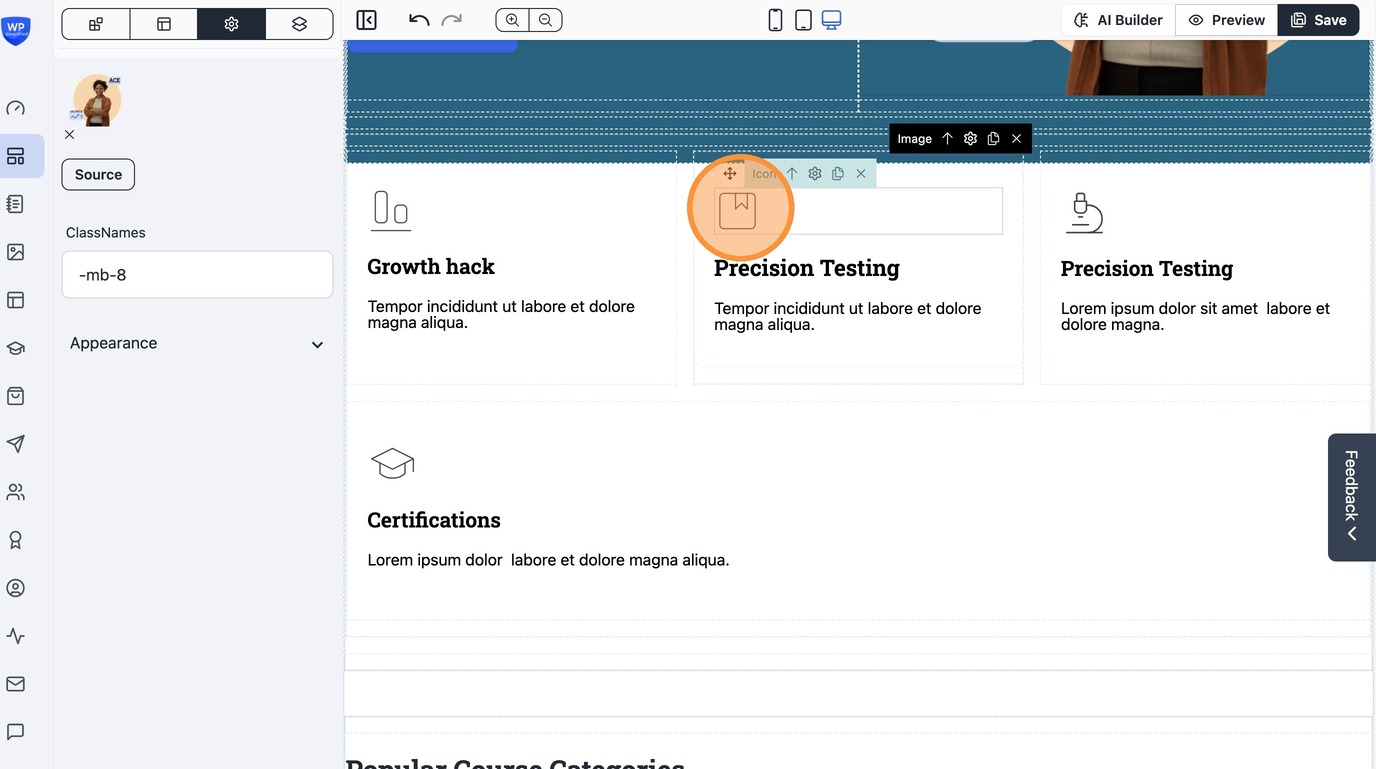
25. Similarly for icons
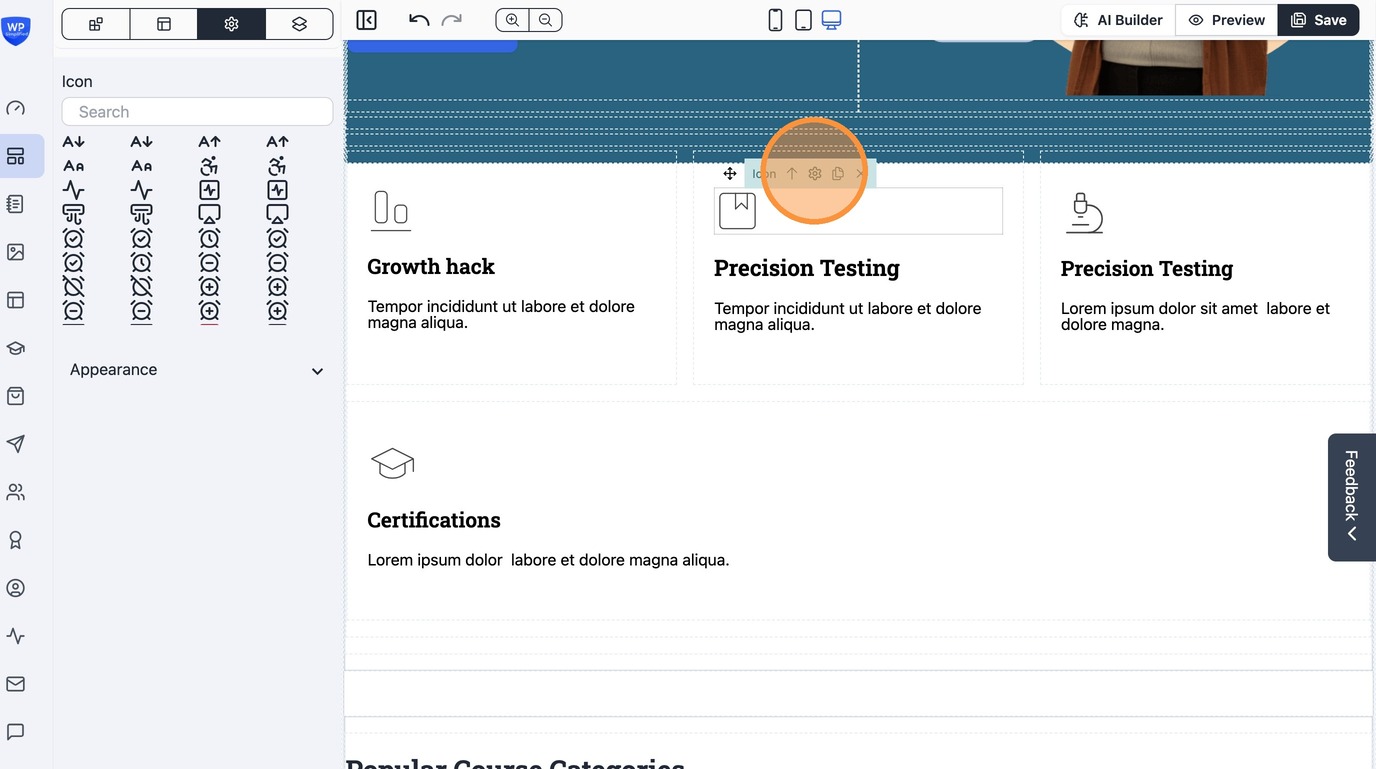
26. Use Settings icon to see list of available icons
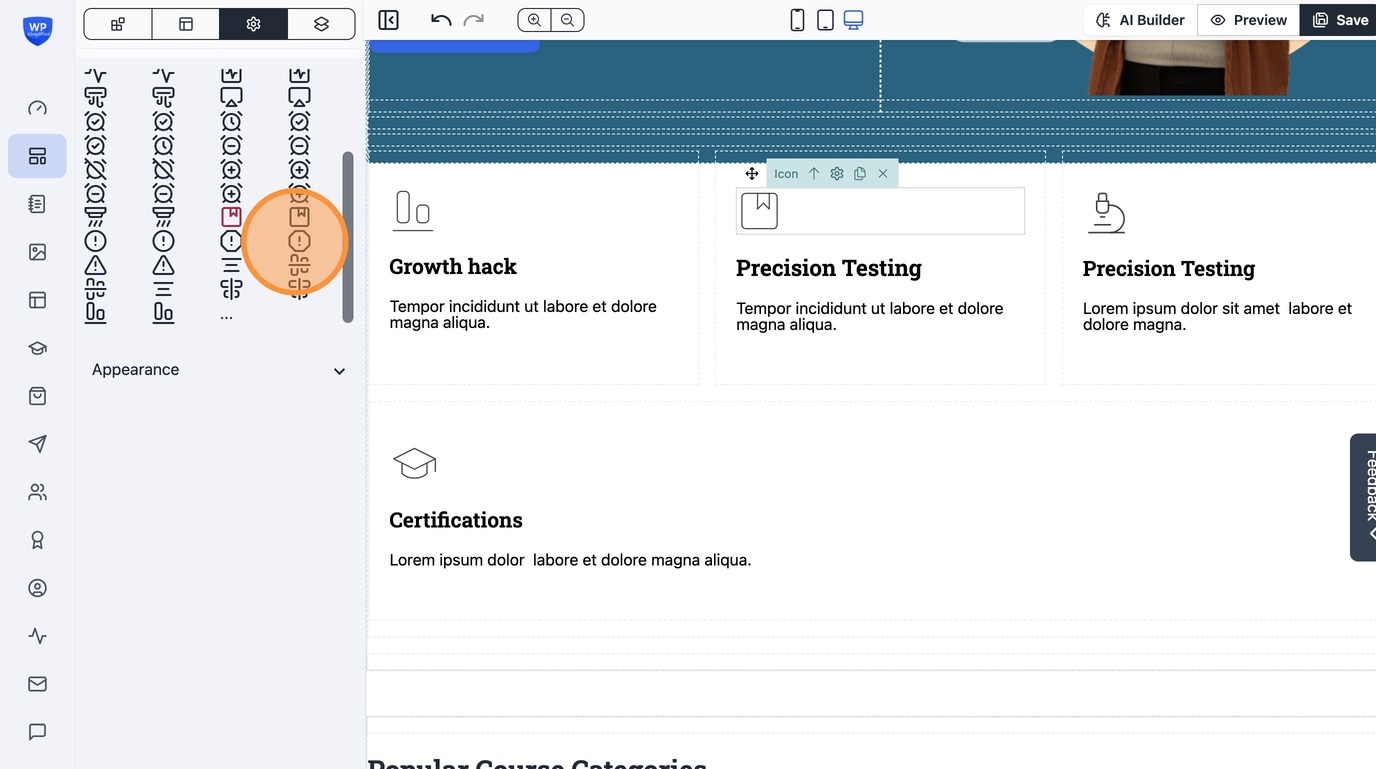
27. Select an icon to replace
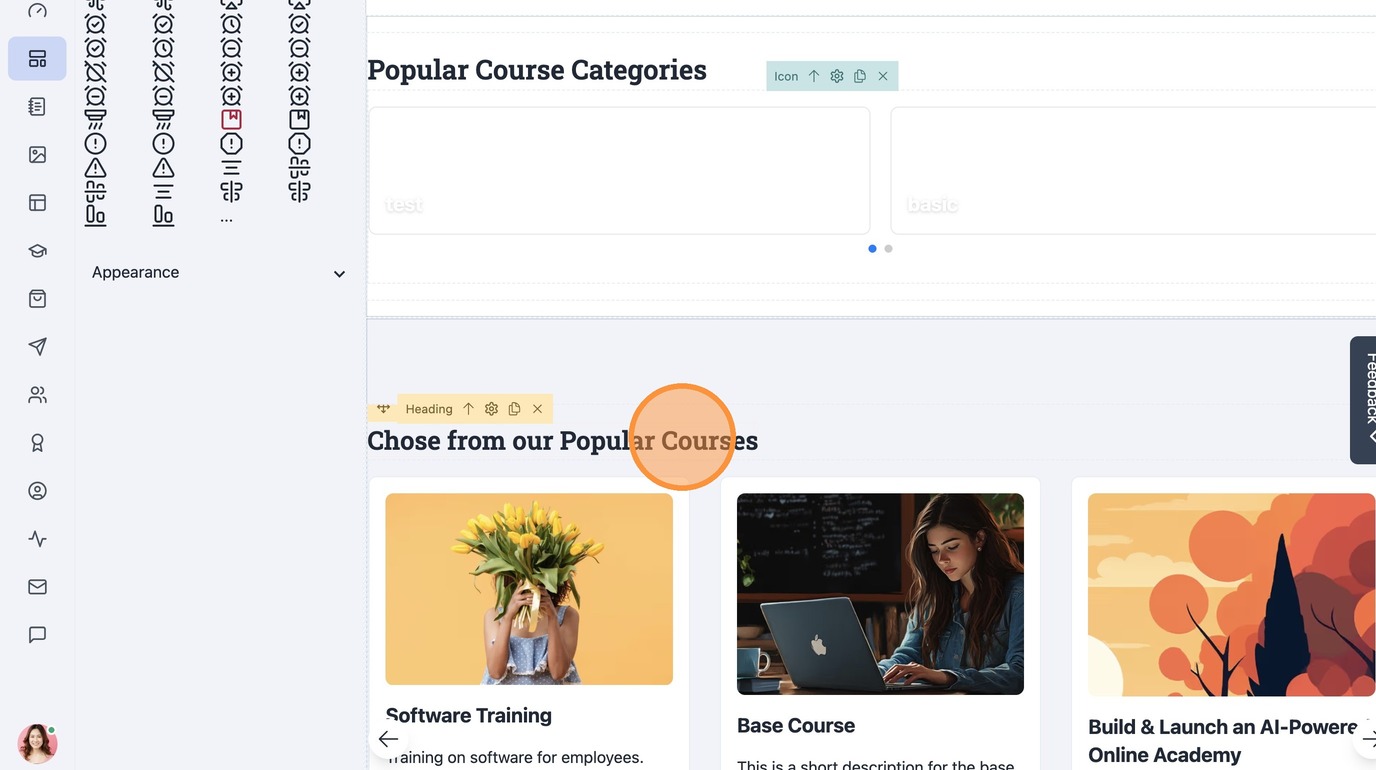
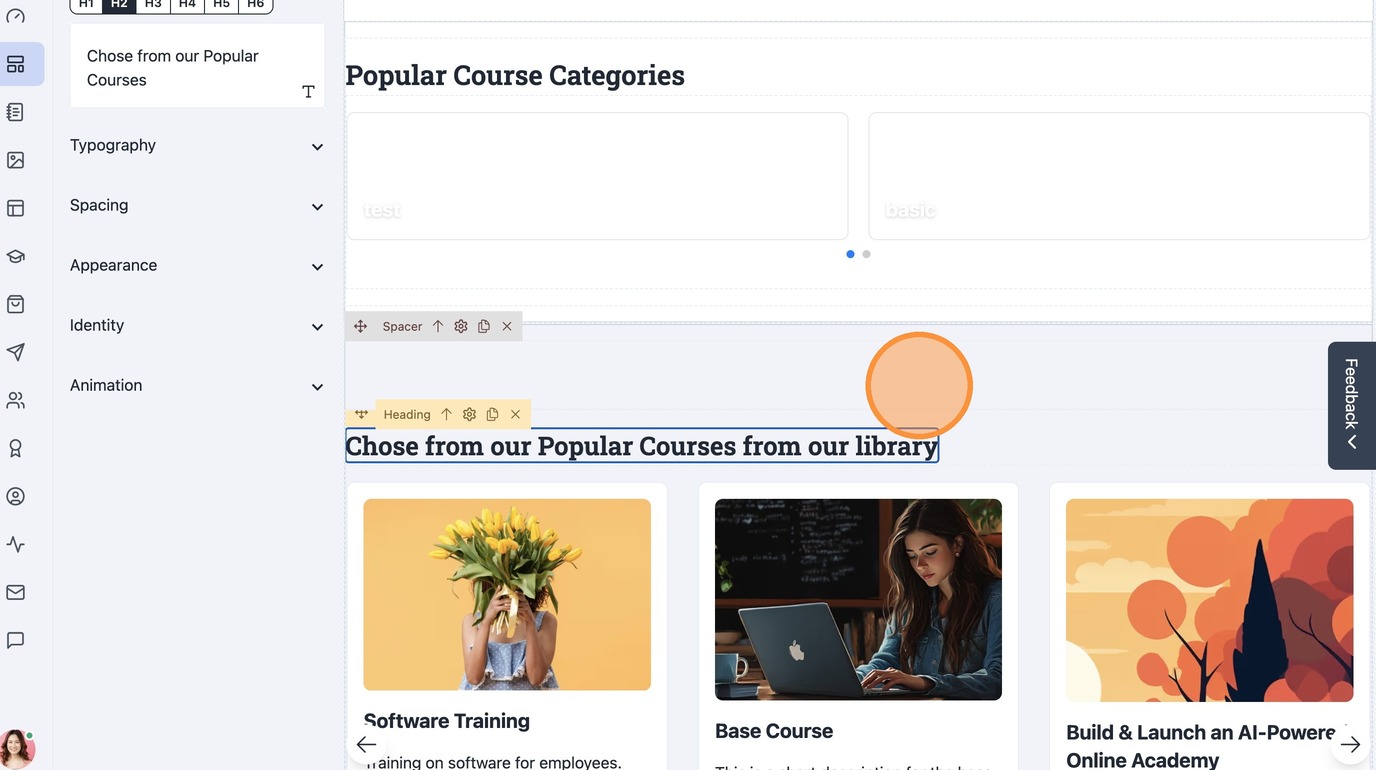
28. Relabel headings by simply clicking and typing on it.
29. Here's how you make simple easy changes to pages.
