- About
- Objective
- Features
- Documentation
- Documentation Builder
- Setup
- Setup Domain
- Page Builder
- BYOS
- LMS
- About LMS
- Creating Courses
- Course Management
- CMS
- Site Features
- Posts
- Media
- Live Customizer
- Workshops
- Zoom Meetings in AcademyLauncher
- Google Meet in Workshops & Google login
- Community
- Community features
- Users
- eCommerce
- Products
- Memberships
- Orders
- Subscriptions
- Payments
- Configuring Stripe
- Payment Settings
- Configuring Razorpay
- Reports
- Dashboard
- Course reports
- Administrator
- Policy
- Privacy Policy
- FAQ
- Default Storage
- Setting up site logo, title
- Customize Dashboard Menu
- Account
- Account workspace overview
- Manage plan, imports, policies, and ownership
- Manage workspace features
- Manage domains, URLs, and sitemap
- Manage data and privacy requests
- Configure role navigation
- Configure dashboard layout
Roles
This screen is designed to allow administrators to control user access and permissions within the platform.
Role capabilities are specific permissions assigned to a user role. By carefully managing these capabilities, administrators can control which users have access to different features and functionalities within the platform.
Example:
Administrator: This role typically has full access to all features and can manage other users.
Student: This role may have limited access, such as the ability to view and interact with specific content.
Instructor: This role may have limited access, such as the ability to create courses and manage students within their courses.
adv student: This role might have additional capabilities, such as the ability to create groups or collaborate with other users.
Additional Considerations:
Role Hierarchy: Some platforms may allow for hierarchical roles, where one role can inherit the capabilities of another role.
Custom Roles: Administrators may be able to create custom roles with specific sets of capabilities.
Role-Based Access Control (RBAC): This is a security model that uses roles to determine user access to resources. The platform likely implements RBAC to enforce these permissions.
By effectively managing user roles and their associated capabilities, administrators can ensure the security and functionality of the platform.
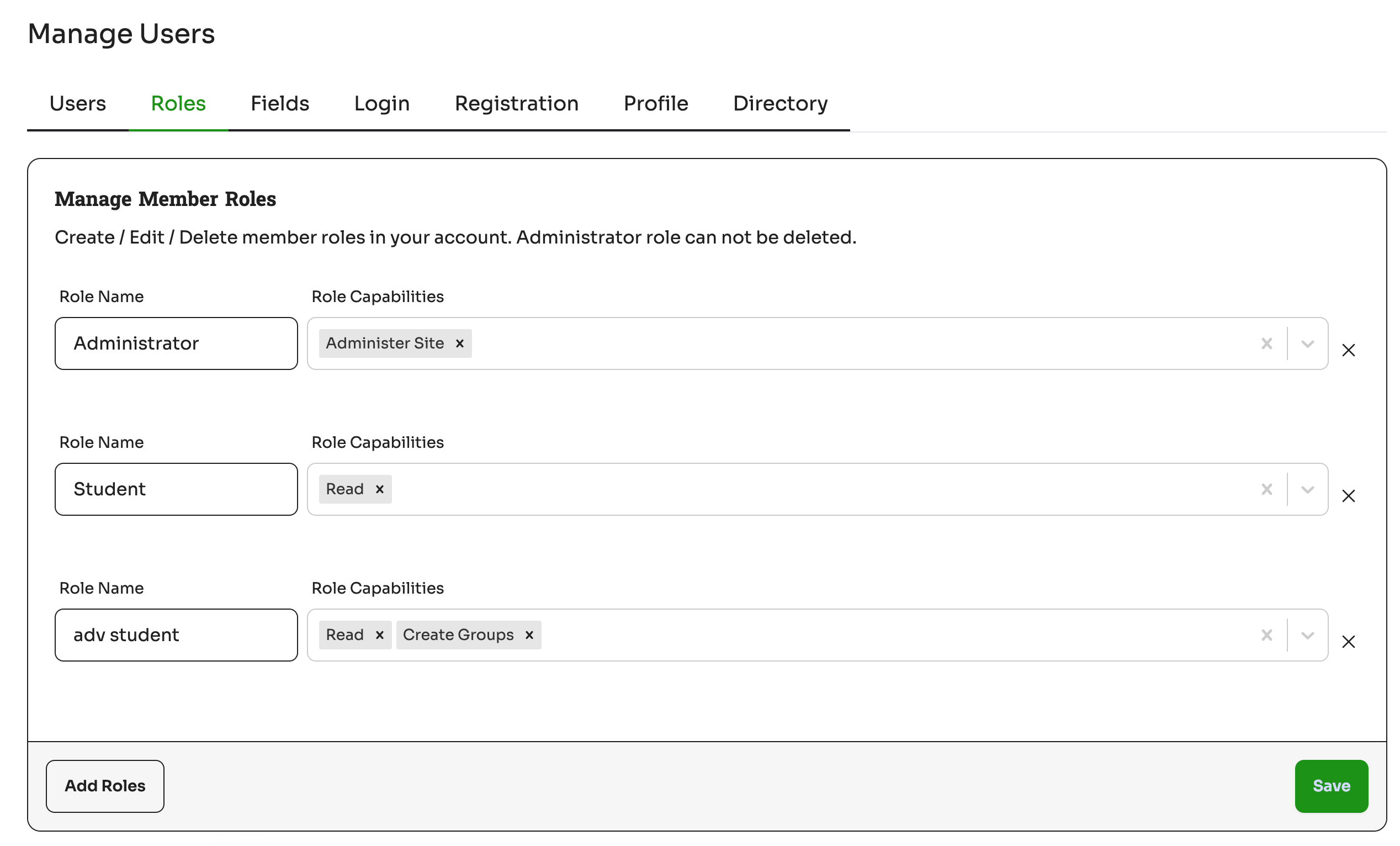
Create/Edit/Delete: Create new roles, edit existing ones, and delete roles (except for the "Administrator" role).
Role Name: This field displays the name of the role, such as "Administrator," "Student," or "adv student."
Role Capabilities: This section lists the capabilities associated with each role. Capabilities determine what actions a user with that role can perform within the system. For example, the "Administrator" role has the "Administer Site" capability, while the "Student" role has the "Read" capability.
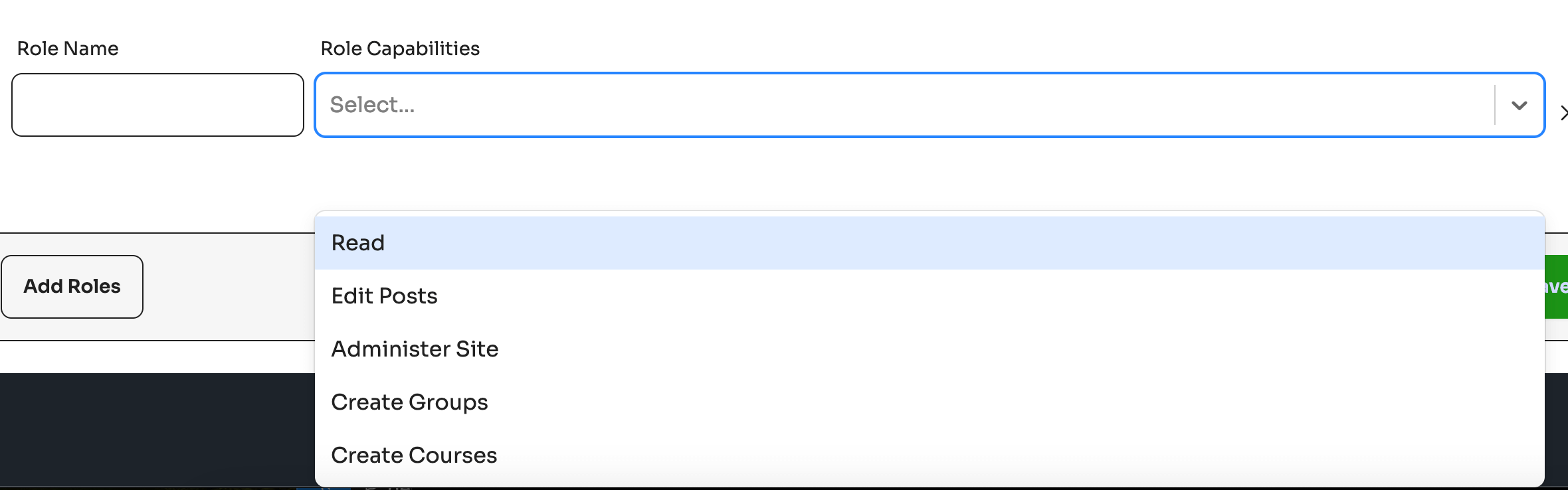
Add Roles: This button allows the administrator to create a new role.
Save: This button saves any changes made to the roles and their capabilities.
Add Role
=> You should not delete an Administrator role in your site, it gets formed as soon as the site is initiated.
Click on the add role at the bottom of the screen to add a new role. There is no role order but the default order in which they are added is the same order they are displayed in the members directory.