- About
- Objective
- Features
- Documentation
- Documentation Builder
- Setup
- Setup Domain
- Page Builder
- BYOS
- LMS
- About LMS
- Creating Courses
- Course Management
- CMS
- Site Features
- Posts
- Media
- Live Customizer
- Workshops
- Zoom Meetings in AcademyLauncher
- Google Meet in Workshops & Google login
- Community
- Community features
- Users
- eCommerce
- Products
- Memberships
- Orders
- Subscriptions
- Payments
- Configuring Stripe
- Payment Settings
- Configuring Razorpay
- Reports
- Dashboard
- Course reports
- Administrator
- Policy
- Privacy Policy
- FAQ
- Default Storage
- Setting up site logo, title
- Customize Dashboard Menu
- Account
- Account workspace overview
- Manage plan, imports, policies, and ownership
- Manage workspace features
- Manage domains, URLs, and sitemap
- Manage data and privacy requests
- Configure role navigation
- Configure dashboard layout
Site Title and Logo setup
How to setup logo in your site
This guide provides a walkthrough for setting up logo and site title for your AcademyLauncher site.
1. Login and Navigate to https://YOURSITE.academylauncher.com/dashboard
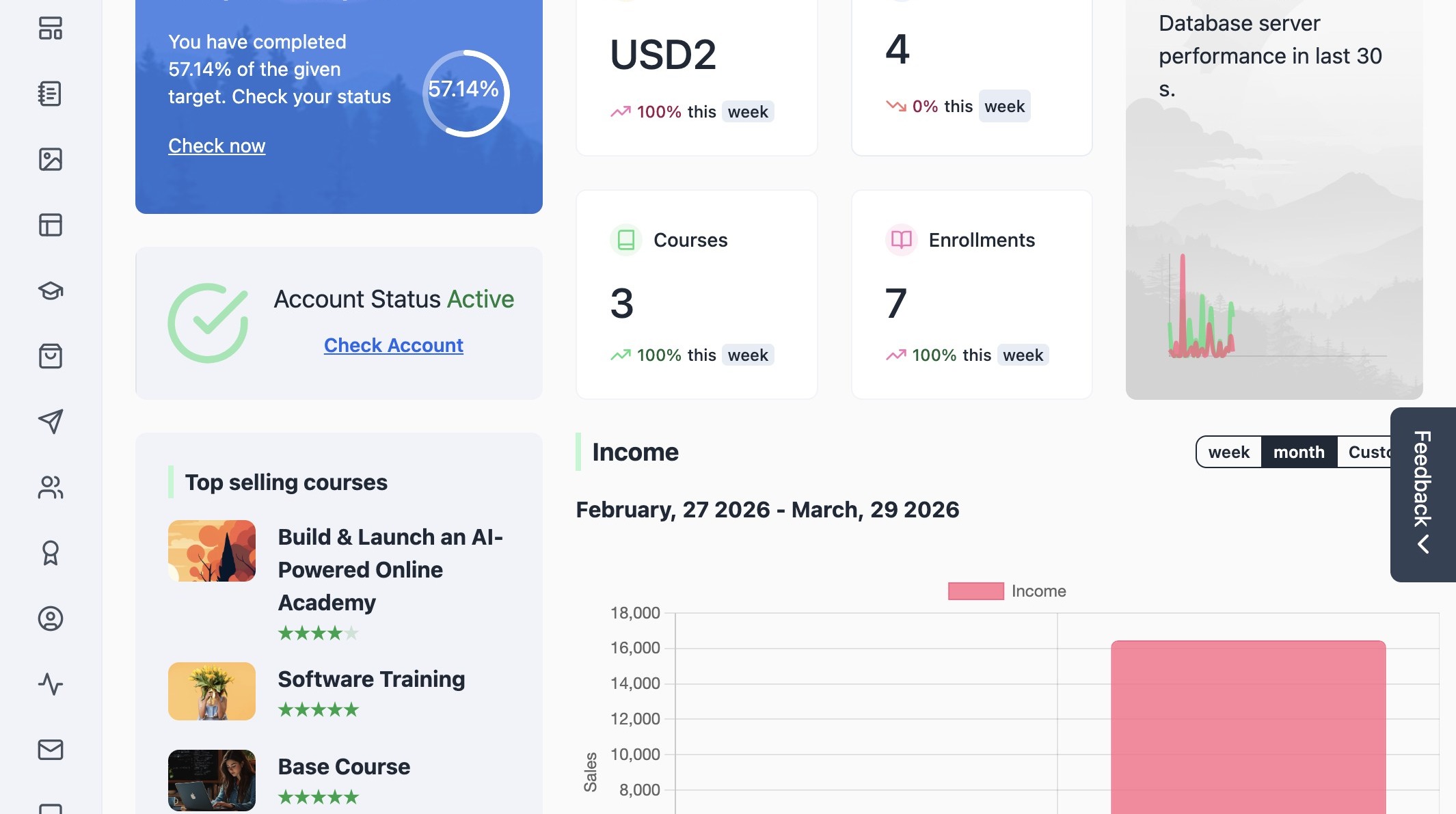
2. Click on the Website Live customizer
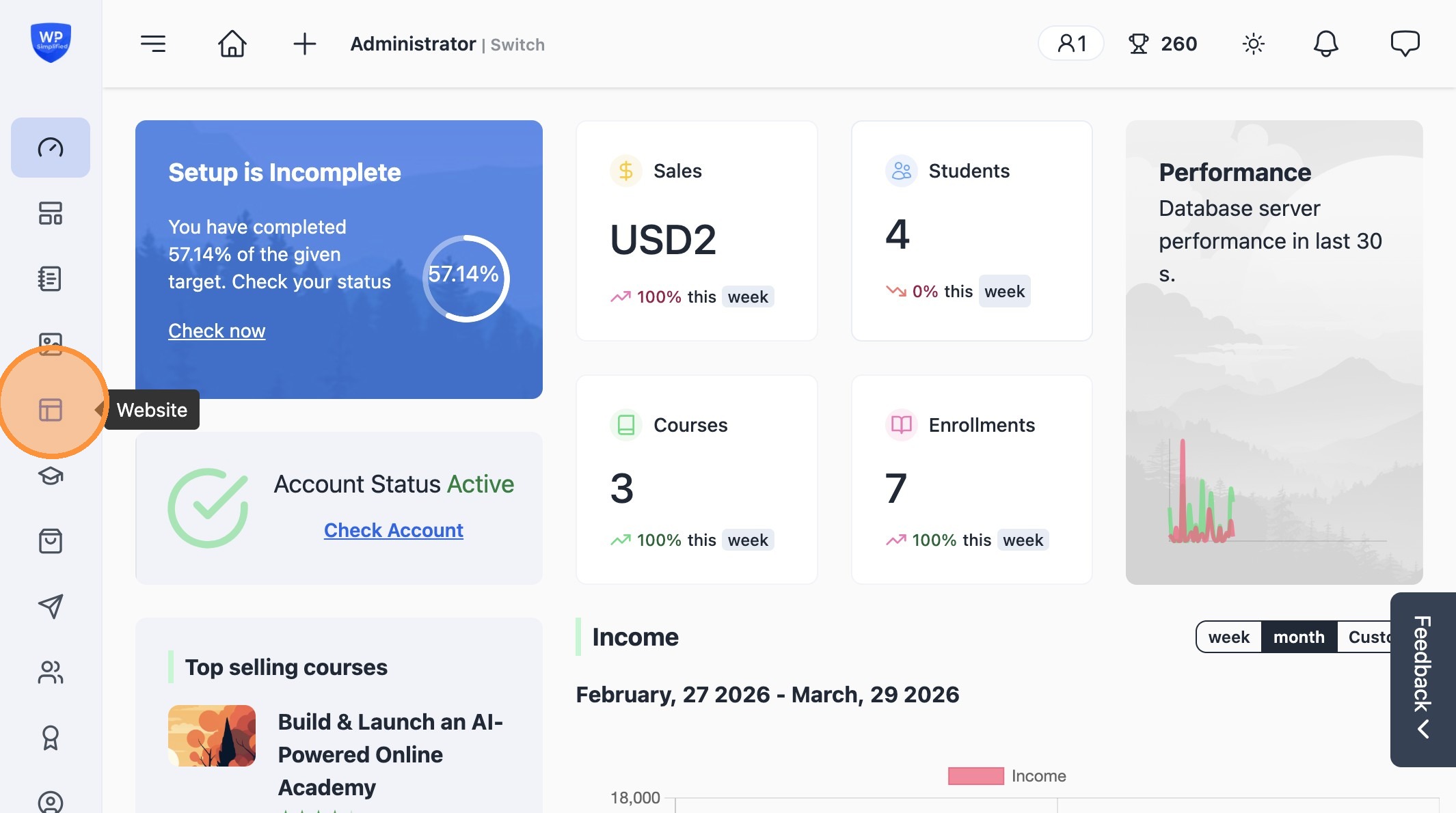
3. Configure your site title. It serves as a fallback when a logo is missing and plays a key role in SEO and how search engines display your site
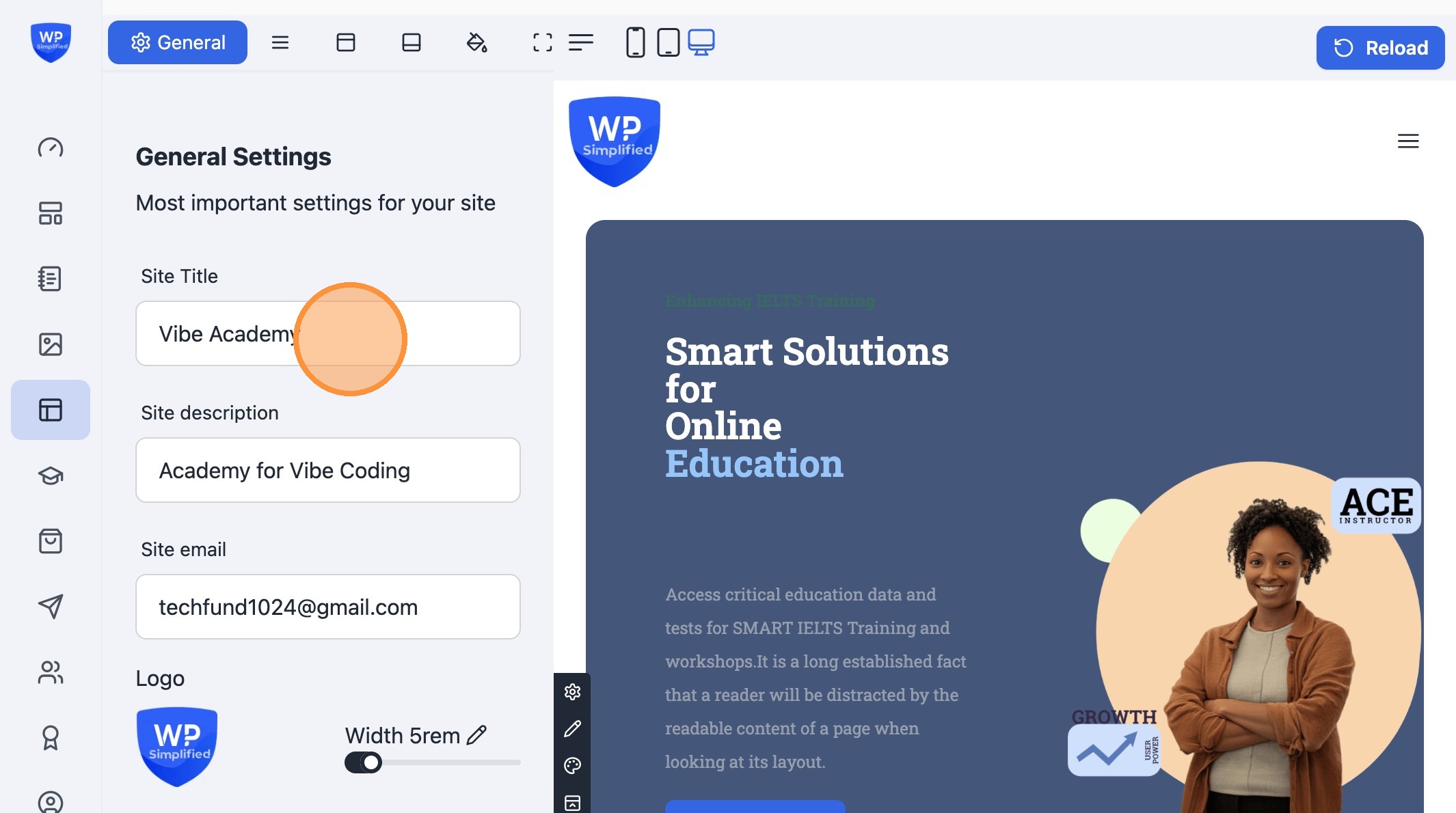
4. Enter a site description. This text is used in meta tags to improve SEO and help search engines understand your content.

5. Enter the site’s administrative email address. This serves as the primary contact for user support and should ideally match the outgoing 'From' address configured in your Account Settings.

6. Select the upload button or click the existing logo image area to set your site's logo.

7. Upload a new logo or select an existing one from your media library.
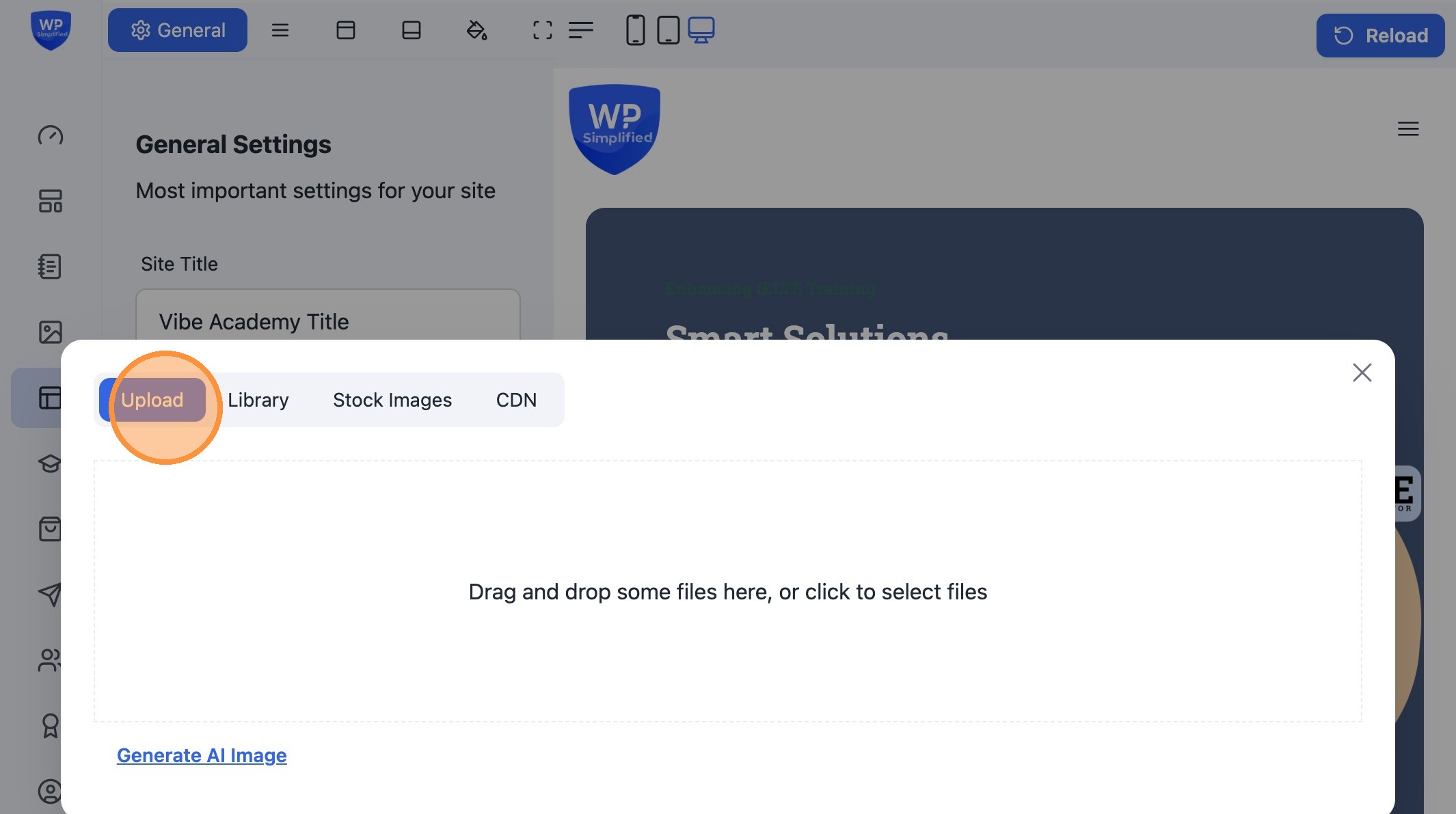
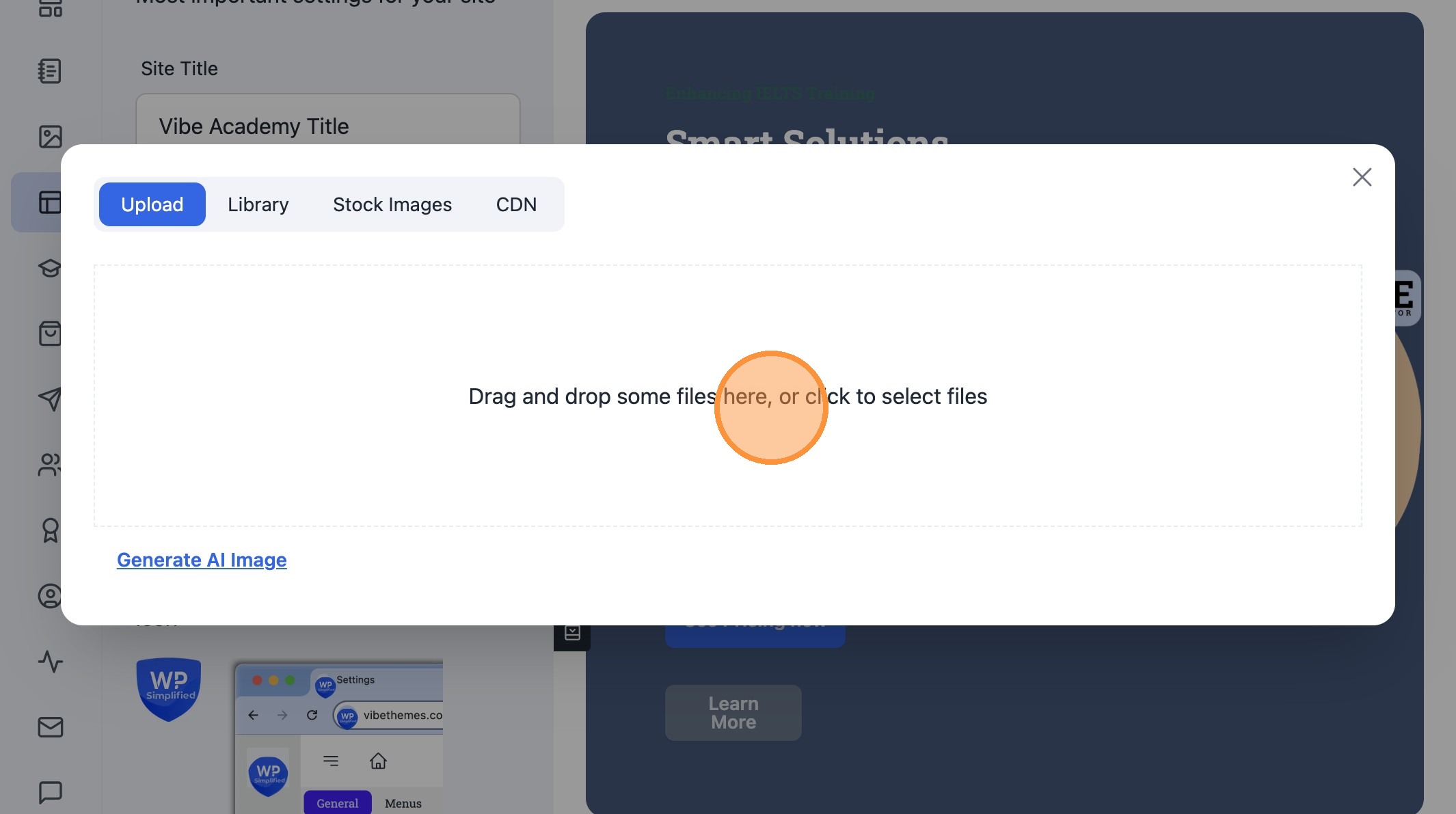
8. Drag and drop your image directly into the upload area below.
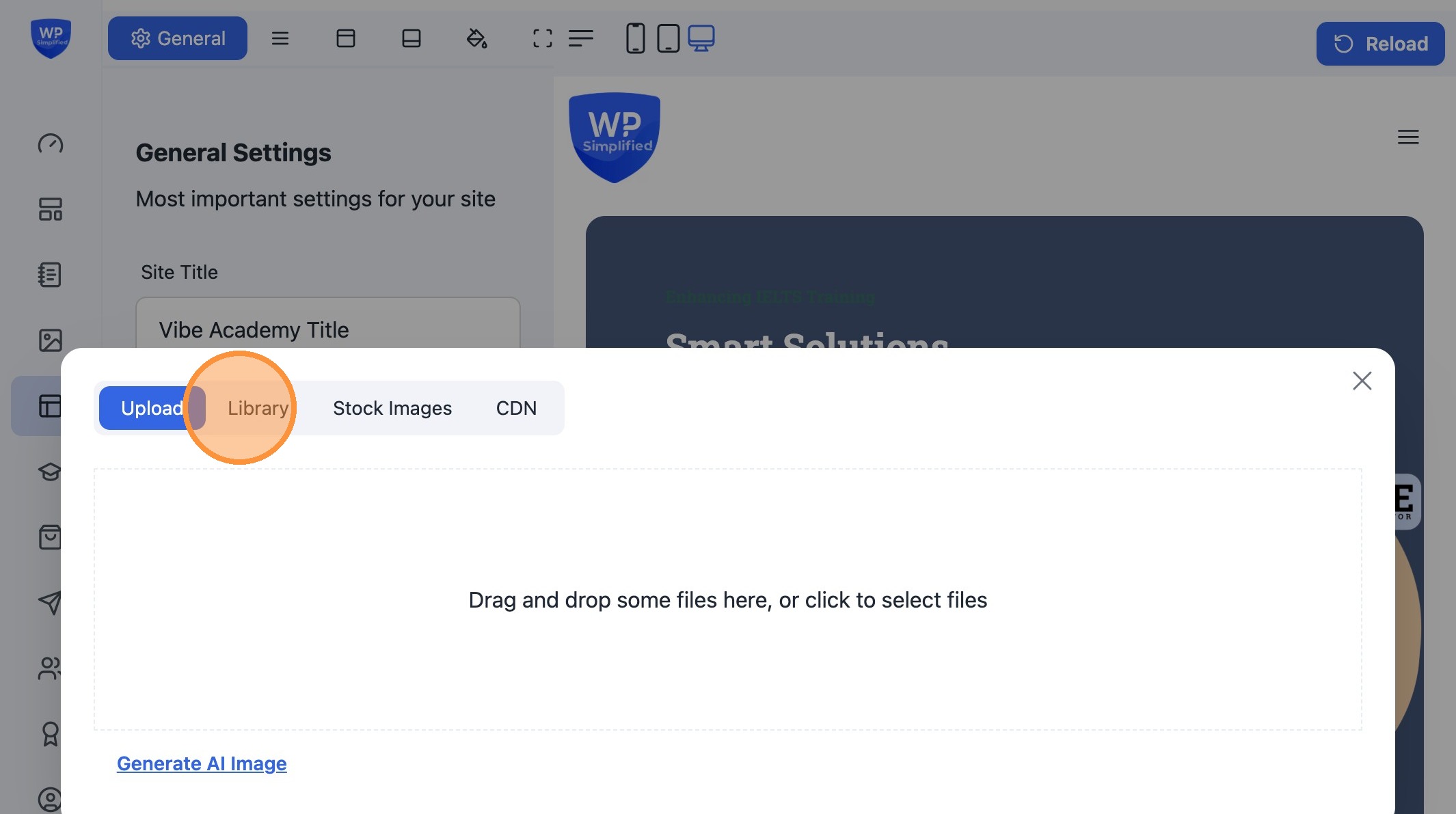
9. Alternatively, switch to the Media Library to select a previously uploaded image.
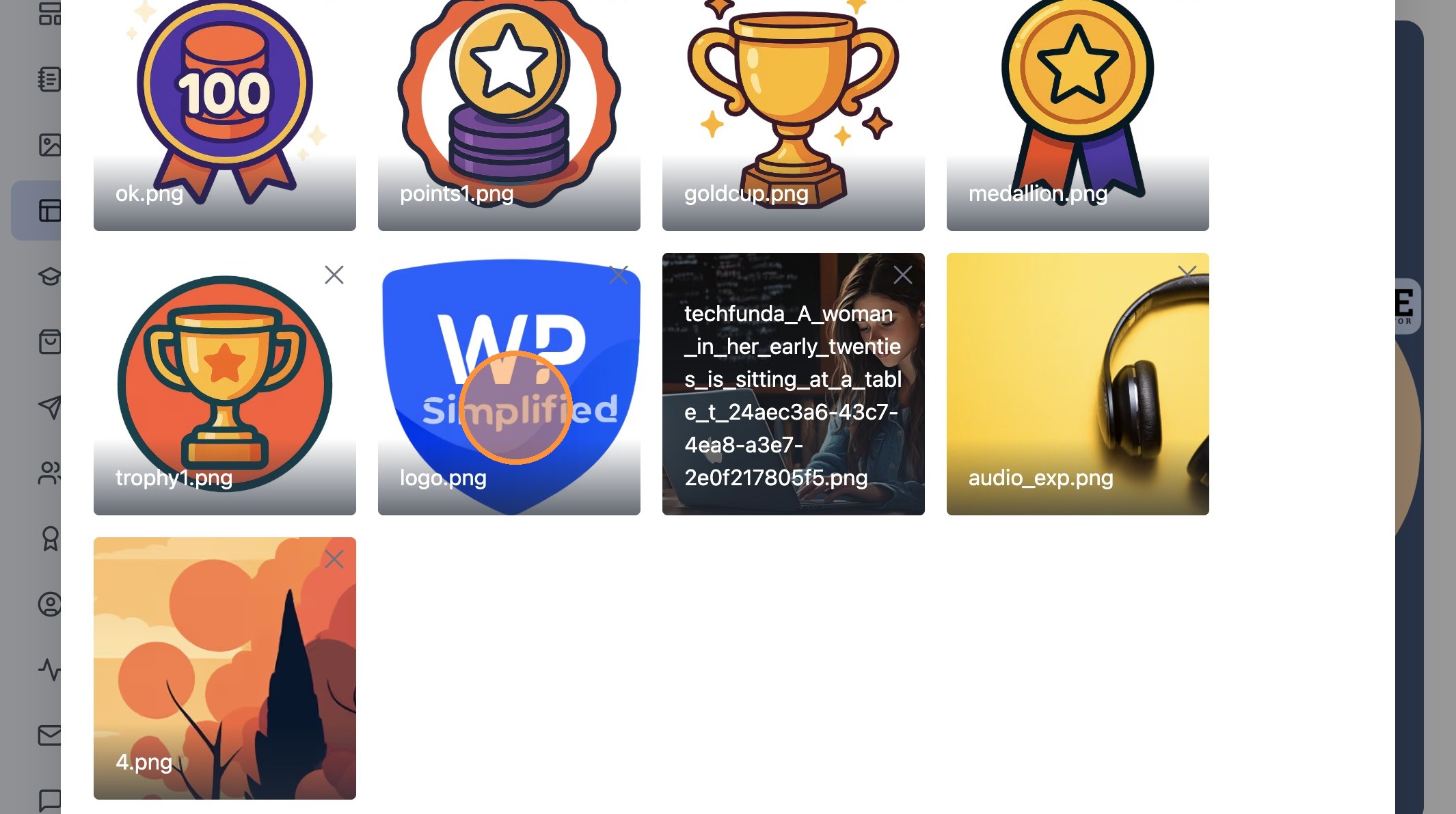
10. Choose an image from your existing library to set as the site logo.
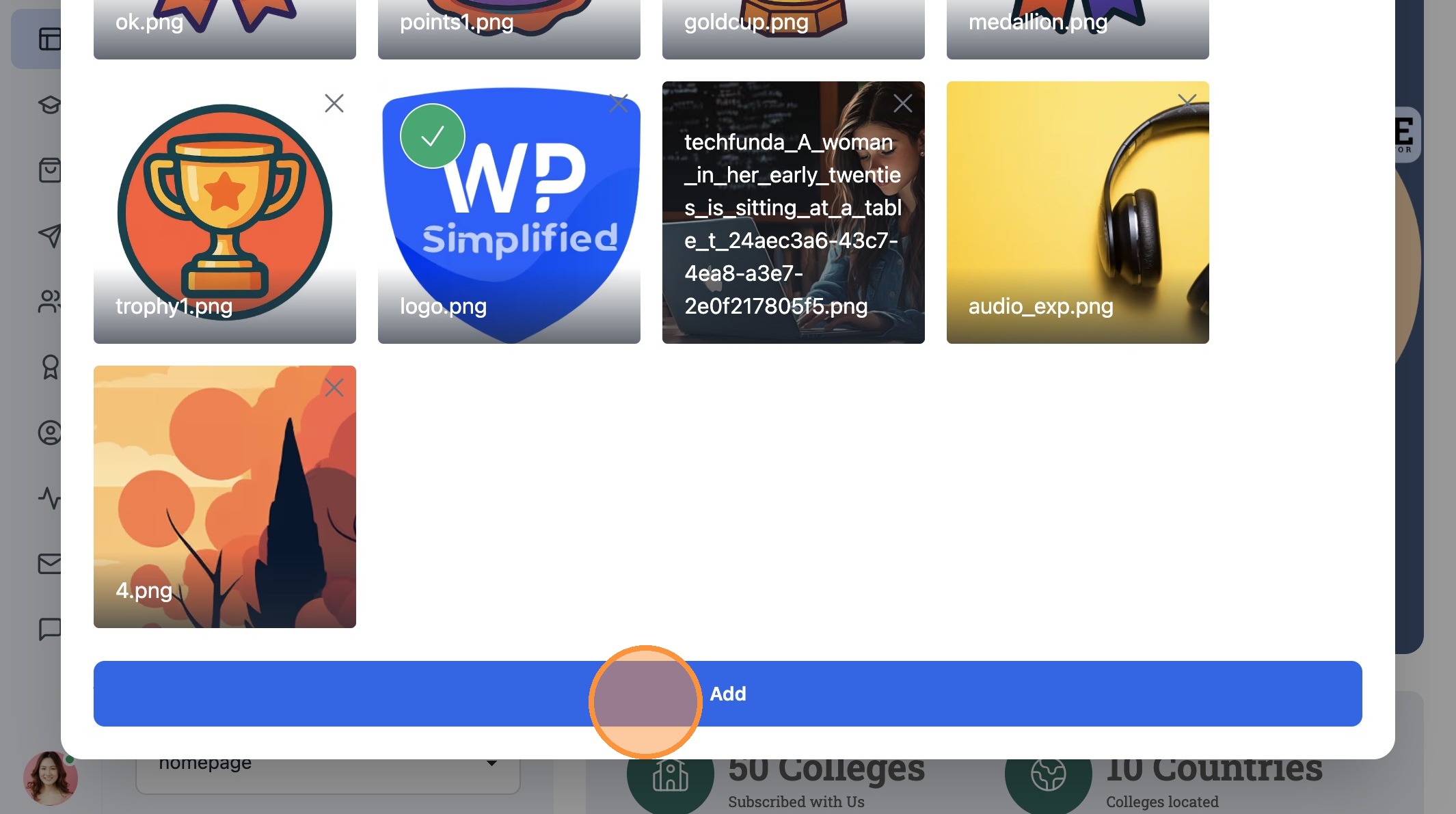
11. After selecting click "Add" button to set this image as the logo
12. Customise the width of the logo, changes are shown live